Are you a busy professional gamer balancing work, family, and your passion for virtual worlds? Do pre-built systems leave you wanting more customization or better value for your hard-earned money? In 2026, building your own gaming PC remains the ultimate solution for optimizing performance, managing your budget, and creating a setup that truly fits your lifestyle. This comprehensive guide, designed for the modern US gamer (average age ~36, often juggling multiple responsibilities), will demystify the PC building process. We understand the pain points: setup issues, performance bottlenecks when you only have limited gaming time, and the struggle to stay current without breaking the bank. Forget the hype and corporate jargon; we'll provide practical, actionable advice to help you construct a powerful, reliable gaming rig. From selecting components that offer the best value to troubleshooting common problems, we cover everything you need to know. Empower yourself to build a machine that not only runs your favorite titles flawlessly, including the latest social and competitive games, but also provides the relaxation and skill-building opportunities you crave after a long day.
Is building a gaming PC worth it in 2026?
Yes, absolutely. Building a gaming PC in 2026 offers unparalleled customization, superior performance per dollar compared to pre-builts, and the flexibility to upgrade components as technology evolves. With current trends leaning towards more demanding titles and cross-play, a custom build ensures you stay competitive and enjoy immersive experiences without constant hardware limitations. For many busy adults, it’s a rewarding project that pays off in long-term satisfaction and value.
What is the minimum budget for a good gaming PC build?
In 2026, you can build a solid entry-level gaming PC capable of 1080p gaming at high settings or 1440p at medium settings for around $800-$1000. This budget allows for a modern CPU, a capable mid-range GPU (like an RTX 4060 or RX 7700 XT equivalent), 16GB RAM, and a fast SSD. For 1440p high refresh rates or entry-level 4K, expect to spend $1200-$1800. Remember, prices fluctuate, so always check current deals.
How long does it take to build a gaming PC?
For a first-timer, assembling a gaming PC typically takes anywhere from 3 to 6 hours. Experienced builders can often complete it in 1-2 hours. The initial setup, including installing the operating system, drivers, and essential software, might add another 1-3 hours. It is recommended to set aside a full afternoon or weekend, taking your time with each step and consulting guides. Patience is key to a smooth build process.
What are the essential components for a gaming PC?
The core components for any gaming PC include a Central Processing Unit (CPU), Graphics Processing Unit (GPU), Motherboard, Random Access Memory (RAM), Storage (SSD is highly recommended), Power Supply Unit (PSU), and a PC Case. You'll also need a monitor, keyboard, and mouse. Optional but recommended items include a CPU cooler (if not included with CPU), extra case fans, and peripherals like a good headset.
Can I build a gaming PC if I have no prior experience?
Yes, absolutely! Building a gaming PC is often described as adult LEGOs. With countless online tutorials, video guides, and step-by-step instructions available, even complete beginners can successfully assemble their own system. The process has become more user-friendly over the years, and components are designed to fit together easily. Patience, careful reading, and watching instructional videos are your best tools.
How do I know if my PC components are compatible?
Component compatibility is crucial. The primary compatibility checks involve ensuring your CPU socket type matches your motherboard, your RAM type (DDR4 or DDR5) matches your motherboard, and your power supply provides enough wattage for all your components, especially the GPU. Online tools like PCPartPicker.com are invaluable as they automatically flag potential compatibility issues, helping you choose parts confidently and avoid costly mistakes.
What are the common mistakes to avoid when building a gaming PC?
Common mistakes include not grounding yourself to prevent static discharge, applying too much or too little thermal paste, forgetting to plug in all power cables (especially the CPU 8-pin and GPU power), installing RAM in incorrect slots for dual-channel, or not enabling XMP/DOCP in the BIOS for optimal RAM speeds. Double-checking every connection and following a reliable guide can prevent most headaches.
Are you a dedicated gamer, perhaps balancing a demanding job and family life, who finds themselves yearning for a truly personalized gaming experience without unnecessary compromises or a hefty price tag? In 2026, the world of gaming is more vibrant than ever, with 87% of US gamers playing regularly and many dedicating over 10 hours a week to their passion. While mobile gaming continues its dominance, the allure of high-fidelity PC gaming, especially for social play on platforms like Discord or competitive esports viewing, remains strong. However, pre-built gaming PCs often fall short, either costing too much for the components inside or lacking the specific performance and upgradeability that a discerning gamer needs.
You want a machine that not only handles the latest titles like Palworld, Helldivers 2, or your favorite competitive shooter but also offers stable performance for those precious hours you carve out for yourself. You value relaxation, skill-building, and social connections through games, but you also need value for money and a system that won't give you setup headaches. This guide is your trusted friend, ready to walk you through the rewarding journey of building your very own gaming PC. We’ll cut through the noise, address common pain points, and equip you with the knowledge to create a powerful, future-proof rig that fits your life and your budget.
Why should I build a gaming PC in 2026 instead of buying pre-built?
Building your own gaming PC in 2026 offers significant advantages, especially for the savvy gamer who values control and cost-effectiveness. The primary benefit is getting more performance per dollar. Pre-built systems include assembly and marketing costs, meaning you often pay a premium for lesser components. When you build, you hand-pick each part, optimizing for your specific needs, whether it's raw power for 4K gaming or a balanced system for competitive 1440p play. This customization ensures you avoid bloatware and have a deeper understanding of your machine for easier future upgrades and troubleshooting.
Furthermore, the satisfaction of assembling your own rig is immense, providing a valuable skill and a deeper connection to your gaming experience. For busy adults, this project can be a fulfilling weekend endeavor that pays dividends in long-term performance and savings, allowing you to invest more in games or other family priorities. You are in control of the build quality and component selection, ensuring every piece meets your standards.
What essential components do I need to build a modern gaming PC?
A gaming PC is a symphony of interconnected parts, each playing a crucial role. Here are the core components you will need:
- Central Processing Unit (CPU): The brain of your computer, responsible for executing instructions. For gaming, look for multi-core processors from Intel (e.g., Core i5/i7) or AMD (e.g., Ryzen 5/7).
- Graphics Processing Unit (GPU): The most critical component for gaming, rendering all the visuals. NVIDIA (GeForce RTX series) and AMD (Radeon RX series) are the main players. This will likely be your biggest investment.
- Motherboard: The central hub that connects all your components. Ensure it's compatible with your chosen CPU socket and RAM type.
- Random Access Memory (RAM): Temporarily stores data for quick access. 16GB is the sweet spot for 2026 gaming, with 32GB being ideal for heavy multitaskers or streamers. Opt for DDR4 or DDR5, matching your motherboard.
- Storage (SSD): Essential for fast game loading and snappy system performance. An NVMe SSD is highly recommended for your operating system and primary games. A larger SATA SSD or even a traditional HDD can be added for bulk storage.
- Power Supply Unit (PSU): Provides power to all your components. Don't skimp here; a reliable PSU with sufficient wattage (check a PSU calculator) is crucial for stability.
- PC Case: Houses all your components, provides airflow, and impacts aesthetics. Choose one with good cable management options and adequate cooling.
- CPU Cooler: Keeps your CPU from overheating. Some CPUs come with stock coolers, but aftermarket air coolers or All-In-One (AIO) liquid coolers offer better performance, especially for higher-end CPUs.
Beyond these, you'll need a monitor, keyboard, mouse, and operating system (Windows 11 is standard). A good headset for social gaming and Discord calls is also a major plus.
How do I choose the right components for my specific budget?
Choosing components boils down to balancing performance goals with your financial reality. First, determine your target resolution and frame rate (e.g., 1080p 60fps, 1440p 144fps, 4K 60fps). This heavily influences your GPU choice, which often consumes the largest portion of your budget.
A general budget breakdown for a balanced gaming PC in 2026 might look like this:
- Entry-Level ($800-$1000): Focus on a strong mid-range GPU (e.g., RTX 4060 equivalent) and a capable modern CPU (Ryzen 5, Core i5). This is great for 1080p high/ultra settings and some 1440p medium.
- Mid-Range ($1200-$1800): Step up to a higher-tier GPU (e.g., RTX 4070/4070 Super equivalent) and a more powerful CPU (Ryzen 7, Core i7). This targets 1440p high/ultra settings with high refresh rates.
- High-End ($2000+): For 4K gaming or extreme 1440p, you'll invest in top-tier GPUs (e.g., RTX 4080 Super/4090 equivalent) and CPUs.
Use resources like PCPartPicker.com to select components and check compatibility. This tool is invaluable for ensuring your CPU fits your motherboard, your RAM is compatible, and your PSU has enough wattage. Remember that a budget-friendly CPU and a powerful GPU generally yield better gaming performance than the reverse.
Where can I find reliable parts and the best deals?
For new components, major online retailers are your best bet. Sites like Amazon, Newegg, and Best Buy frequently run sales. Keep an eye out for seasonal sales events like Black Friday, Cyber Monday, and Prime Day, which often offer significant discounts. Manufacturer websites and authorized dealers are also reliable sources. For current month data, always check recent reviews and price tracking sites before making a purchase.
Consider certified refurbished components from reputable sellers to save money, especially on GPUs, which are rigorously tested. The used market (e.g., eBay, Facebook Marketplace, local classifieds) can also offer great deals, but proceed with caution. Always verify seller reputation, ask for benchmarks or proof of working condition, and ideally meet in person for larger purchases. Many gamers upgrade regularly, meaning quality used parts are readily available.
What tools and precautions are necessary for PC assembly?
Building a PC is not as daunting as it seems, and you don't need a huge toolkit. Here's what's essential:
- Philips Head Screwdriver: A magnetic tip is extremely helpful for tiny screws.
- Zip Ties or Velcro Cable Ties: For neat cable management, crucial for airflow and aesthetics.
- Anti-Static Wrist Strap: Prevents static electricity from damaging sensitive components. While not strictly necessary if you consistently ground yourself by touching a metal part of the case, it offers peace of mind.
- Thermal Paste: If your CPU cooler doesn't come with pre-applied paste.
- Flash Drive: For installing your operating system.
- Small Bowl or Container: To hold tiny screws and prevent them from getting lost.
Precautions: Always work on a clean, clear, and non-carpeted surface. Ground yourself frequently by touching a metal part of the PC case or using an anti-static wrist strap. Handle components by their edges, avoiding touching pins or sensitive circuitry. Take your time, consult your motherboard manual, and watch video guides alongside your build.
How do I actually assemble all the components step-by-step?
This is where the magic happens! Follow these general steps, always referring to your motherboard and component manuals for specifics:
- Prepare the Motherboard: Lay your motherboard on its anti-static bag or the motherboard box.
- Install the CPU: Open the CPU socket lever, align the CPU (match the gold triangle/arrow on the CPU to the socket), gently place it, and close the lever. Do NOT force it.
- Install the CPU Cooler: Apply thermal paste (if not pre-applied), then mount the cooler according to its instructions. Ensure firm contact.
- Install RAM: Open the clips on the RAM slots, align the RAM sticks (notch on the stick matches the slot), push firmly until the clips snap into place. Use matching slots for dual-channel (usually indicated in the manual).
- Mount the Motherboard in the Case: Install the I/O shield (if not integrated), then align the motherboard with the standoffs in the case. Screw it in securely.
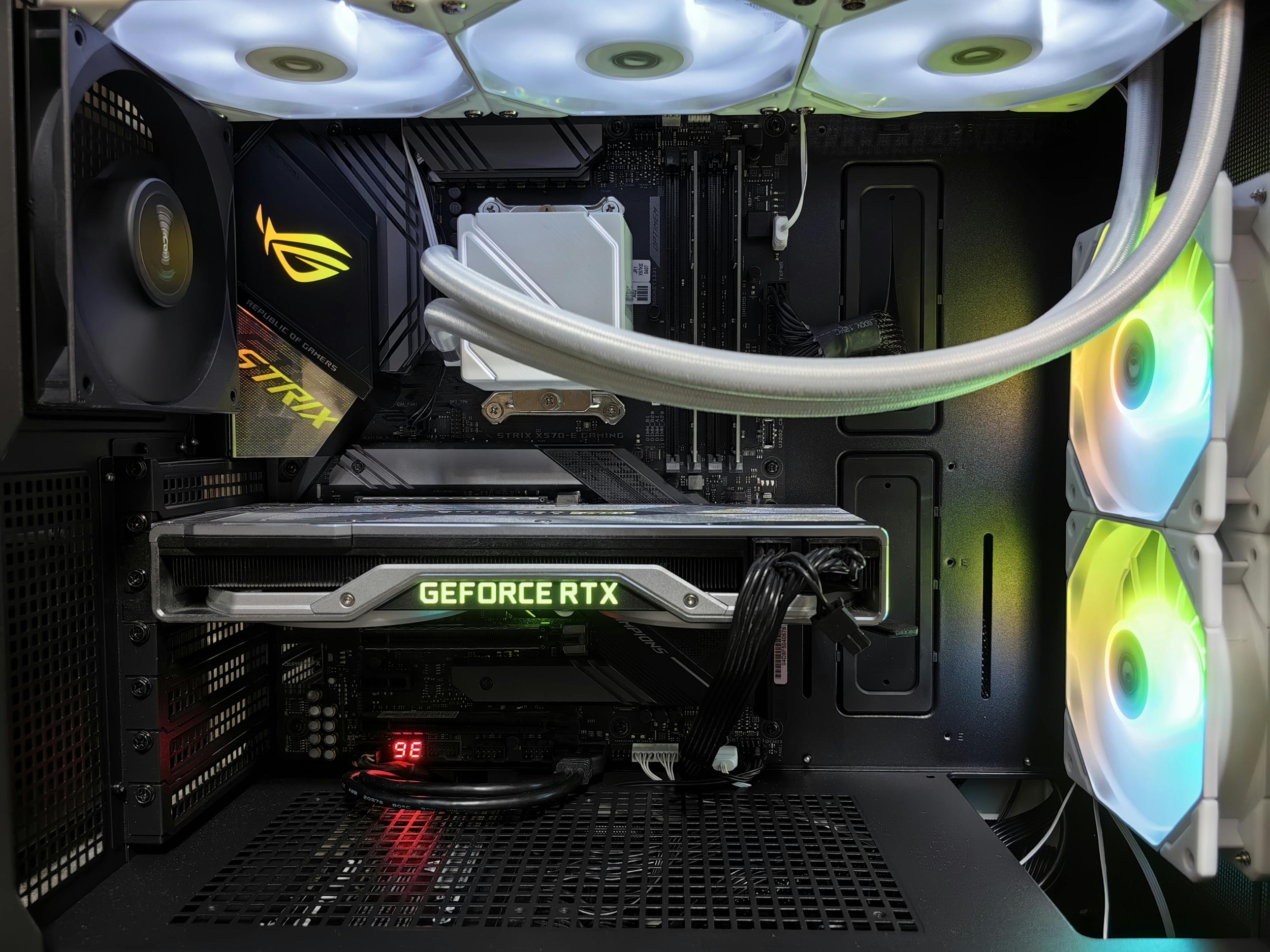
- Install the GPU: Open the PCIe slot latch on the motherboard, align the GPU with the top PCIe x16 slot, push firmly until it clicks, and secure it with screws to the case.
- Install Storage Drives: Mount your NVMe SSDs directly onto the motherboard. For 2.5-inch SATA SSDs or 3.5-inch HDDs, install them into the drive bays in your case.
- Install the Power Supply Unit (PSU): Mount the PSU in its designated spot, usually at the bottom of the case, with the fan facing down (if there's a vent) or up.
- Cable Management: This is crucial. Connect the 24-pin motherboard power, 8-pin (or 4+4-pin) CPU power, GPU power cables, SATA power/data cables (if applicable), and front panel connectors (USB, audio, power/reset buttons). Route cables behind the motherboard tray for a clean look and better airflow.
- Final Checks: Double-check all connections, ensure fans are properly oriented, and verify nothing is obstructing movement.
Remember, this process is like building with LEGOs; each piece has a specific place. Take breaks if you get frustrated, and verify each step against a reliable video guide if you're unsure.
What software do I need after building my PC?
Once the hardware is assembled, it's time to bring your PC to life with software:
- Operating System (OS): Install Windows 11 (or your preferred OS) from a USB drive. You'll need a license key.
- Drivers: This is critical. Install motherboard chipset drivers from the motherboard manufacturer's website, then your GPU drivers directly from NVIDIA or AMD's website. Update network drivers, audio drivers, and any other peripheral drivers. Use tools like GeForce Experience (NVIDIA) or AMD Adrenalin (AMD) for easy GPU driver updates.
- Game Launchers: Install your favorite game platforms like Steam, Epic Games Store, Xbox App, Battle.net, or GOG Galaxy.
- Essential Utilities: Browser (Chrome, Firefox, Edge), Discord for social gaming, antivirus software, and monitoring tools like MSI Afterburner or HWMonitor to keep an eye on temperatures and performance.
Always download drivers from official sources to ensure stability and security. Keeping your drivers up-to-date is key to optimizing performance and avoiding compatibility issues, especially with new game releases.
How can I troubleshoot common post-build issues?
It's normal to encounter a hiccup or two on your first boot. Don't panic! Here are common issues and troubleshooting tips:
- PC Won't Turn On (No Power): Check if the PSU switch is on, all power cables (24-pin, CPU, GPU) are firmly seated, and the case's front panel power button is correctly connected to the motherboard.
- PC Turns On But No Display (Black Screen): Ensure your monitor is plugged into the GPU, not the motherboard's integrated graphics. Reseat your GPU and RAM. Check if your monitor input is set correctly. Try booting with only one RAM stick.
- Blue Screens of Death (BSODs): Often driver-related or RAM instability. Ensure all drivers are up-to-date. Run a memory test (Windows Memory Diagnostic).
- Overheating: Check CPU cooler mounting, thermal paste application, and case fan orientation. Ensure good airflow.
Motherboards often have debug LEDs or a small speaker that can provide error codes to help pinpoint the problem. Consulting your motherboard manual for these codes is extremely helpful. Online forums and communities are also fantastic resources for specific issues.
How do I optimize my new gaming PC for best performance?
Even after assembly, there's more you can do to squeeze out every frame and ensure a smooth experience:
- Update Drivers Regularly: Especially your GPU drivers. NVIDIA and AMD frequently release optimized drivers for new game titles.
- Enable XMP/DOCP: In your motherboard's BIOS, enable XMP (Intel) or DOCP/EXPO (AMD) for your RAM to run at its advertised speeds. This is a common oversight.
- Adjust In-Game Settings: Experiment with graphics settings. Frame rate is often more important than visual fidelity for competitive games. Tools like NVIDIA DLSS or AMD FSR can significantly boost performance without a major visual hit.
- Monitor Temperatures: Use software like MSI Afterburner or HWMonitor to keep an eye on CPU and GPU temperatures. High temps can lead to throttling. Ensure good case airflow.
- Keep Storage Clean: Regularly uninstall unused games and programs. Keep your primary OS drive with some free space for optimal performance.
- Overclocking (Advanced): For experienced users, carefully overclocking your CPU or GPU can provide a performance bump, but research thoroughly and proceed with caution.
For the average gamer, optimizing means finding the perfect balance between visual quality and smooth, consistent frame rates that make your gaming sessions enjoyable and stress-free.
Can I upgrade my gaming PC later and how?
Absolutely, one of the biggest advantages of building your own PC is its upgradeability. This is crucial for busy gamers who want to extend the life of their investment without constant full system overhauls. Common upgrades include:
- Graphics Card (GPU): The most impactful upgrade for gaming performance. Just ensure your PSU has enough wattage and your case has physical space.
- RAM: If you started with 16GB, upgrading to 32GB can provide a noticeable boost for multitasking or future game requirements.
- Storage: Adding more NVMe SSDs or larger SATA SSDs is easy and beneficial for your ever-growing game library.
- CPU: Depending on your motherboard's chipset, you might be able to upgrade to a newer, more powerful CPU within the same generation or socket type.
- CPU Cooler: If you upgrade to a hotter CPU or want better cooling performance, an aftermarket cooler is a wise investment.
Before upgrading, always check component compatibility with your existing motherboard and power supply. Planning for future upgrades during your initial build (e.g., choosing a slightly higher wattage PSU) can save you hassle down the line.
How do I balance gaming with my busy life?
For many gamers, gaming is a vital outlet for relaxation and social connection, especially as adults juggling jobs and families. Balancing it is key:
- Time Management: Schedule your gaming time like any other hobby. Even short, focused sessions can be incredibly rewarding. Communicate with family about your gaming time.
- Social Play: Embrace games that facilitate social interaction. Multiplayer titles or cozy co-op experiences on Discord are perfect for connecting with friends after a long day. This month, social games like Palworld have surged in popularity precisely because they offer shared experiences.
- Stress Relief: Recognize gaming as a legitimate form of stress relief. Whether it's the challenge of skill-building in an esports title or the escapism of an RPG, allow yourself to enjoy it guilt-free.
- Budget Minded Gaming: Leverage free-to-play titles, game passes (like Xbox Game Pass), and sales to keep your gaming habit affordable. Your custom PC will run these flawlessly.
- Set Boundaries: Know when to step away. Gaming should enhance, not detract from, your responsibilities.
Your custom-built PC empowers you to maximize your limited gaming time with optimal performance, making every session count.
Building your own gaming PC in 2026 is more than just assembling parts; it's an investment in a personalized, high-performance entertainment hub that truly caters to your needs as a modern gamer. You gain control, save money, and acquire invaluable knowledge. From choosing the perfect GPU to fine-tuning your settings, you're now equipped to create a machine that not only runs your favorite titles flawlessly but also enhances your ability to relax, compete, and connect with friends. This project is a rewarding journey that culminates in a powerful system tailored exactly to your specifications, ready to take on whatever virtual worlds you conquer next.
What's your biggest gaming challenge with your current setup? Comment below!
***FAQ Section***
***Is building a gaming PC difficult for beginners?***
No, building a gaming PC is often compared to advanced LEGOs. With countless video tutorials and step-by-step guides available online, even first-time builders can successfully assemble their own system. Patience and careful attention to instructions are your best tools.
***What's the most important component for gaming performance?***
The Graphics Processing Unit (GPU) is overwhelmingly the most crucial component for gaming performance. It handles rendering all the visuals, directly impacting frame rates and resolution capabilities. Investing a significant portion of your budget here yields the biggest gaming improvements.
***How much does it cost to build a decent gaming PC in 2026?***
In 2026, a decent gaming PC capable of excellent 1080p or good 1440p gaming can be built for approximately $800-$1200. This budget allows for modern mid-range components that offer great value and performance for the vast majority of popular games.
***Can I use my old monitor and peripherals with a new custom PC?***
Yes, absolutely! As long as your old monitor has compatible input ports (like HDMI or DisplayPort) and your peripherals (keyboard, mouse) connect via USB, they will work perfectly with your new custom-built PC. This is a great way to save money on your initial build.
***What is the purpose of thermal paste on a CPU?***
Thermal paste is applied between the CPU and its cooler to maximize heat transfer. It fills microscopic air gaps on the surfaces, ensuring efficient dissipation of heat generated by the CPU to the cooler, preventing overheating and performance throttling.
***How often should I clean my gaming PC?***
It's generally recommended to clean your gaming PC every 3-6 months. This involves dusting out fans, heatsinks, and case filters using compressed air or a soft brush. Regular cleaning prevents dust buildup, maintains optimal airflow, and prolongs component lifespan.
Build custom gaming PC, optimize performance, save money, learn PC assembly, choose best components, troubleshoot PC issues, upgrade gaming rig, balance gaming life.
34



How To Build Your Dream Gaming Setup In 2026 How To Build Your Dream Gaming Setup.webp. Best Budget Gaming Setup In 2026 Full Guide For Beginners Budget Friendly Gaming Setup In 2026 768x512 . Best Linux For Gaming 2026 Top 8 Distros Ranked After Real Testing How To Build A Gaming Pc 2026 Step By Step Hero 800x500 . Best Gaming PC Builds For 2026 Best Gaming PC Builds For 2026.webp. Gaming Desktop PC Guide 2026 Build The Ultimate Gaming Setup 2 2 3

Build PC Stream Game 2026 C N C U H Nh Ra Sao Live M T Kh Ng Lag Build PC Stream Game 2026 Can Cau Hinh Ra Sao De Live Muot Khong Lag.webp. How To Build A Future Proof Gaming PC In 2026 Complete Custom Build Guide 1773043345 . 35 Gaming Room Setup 2026 Ideas That Redefine Cozy Minimalist And 33 3. How To Build Gaming PC Guide 2026 Step By Step Budget Gaming PC 2026 Gaming Pc . Should You Build A PC In 2026 Mid Range Gaming Build Guide January Cld Sample




How To Build A PC 2026 Don T Build A PC Pcbuild Ssd Ram Gaming . How To Choose The Right Gaming PC In 2026 Complete Guide Complete Guide 1200x675 . The Ultimate Gaming Setup 2025 And How To Build IT AI In Gaming . How Gaming Startups Use Randomness To Build More Engaging Products PC Casino Gaming 688x390 . How Gaming Startups Use Randomness To Build More Engaging Products PC Online Gaming 1044x696



How Gaming Startups Use Randomness To Build More Engaging Products PC Ai Casino 1400x792 . How To Make Money As A Gaming Creator In 2026 Fanvault How To Make Money As A Gaming Creator 2026 . 10 Much Awaited Games Set To Launch In 2026 Games To Launch 2026 1068x672 . Building A Gaming PC In 2026 Is DIFFERENT YouTube . 35 Gaming Room Setup 2026 Ideas That Redefine Cozy Minimalist And 44 1
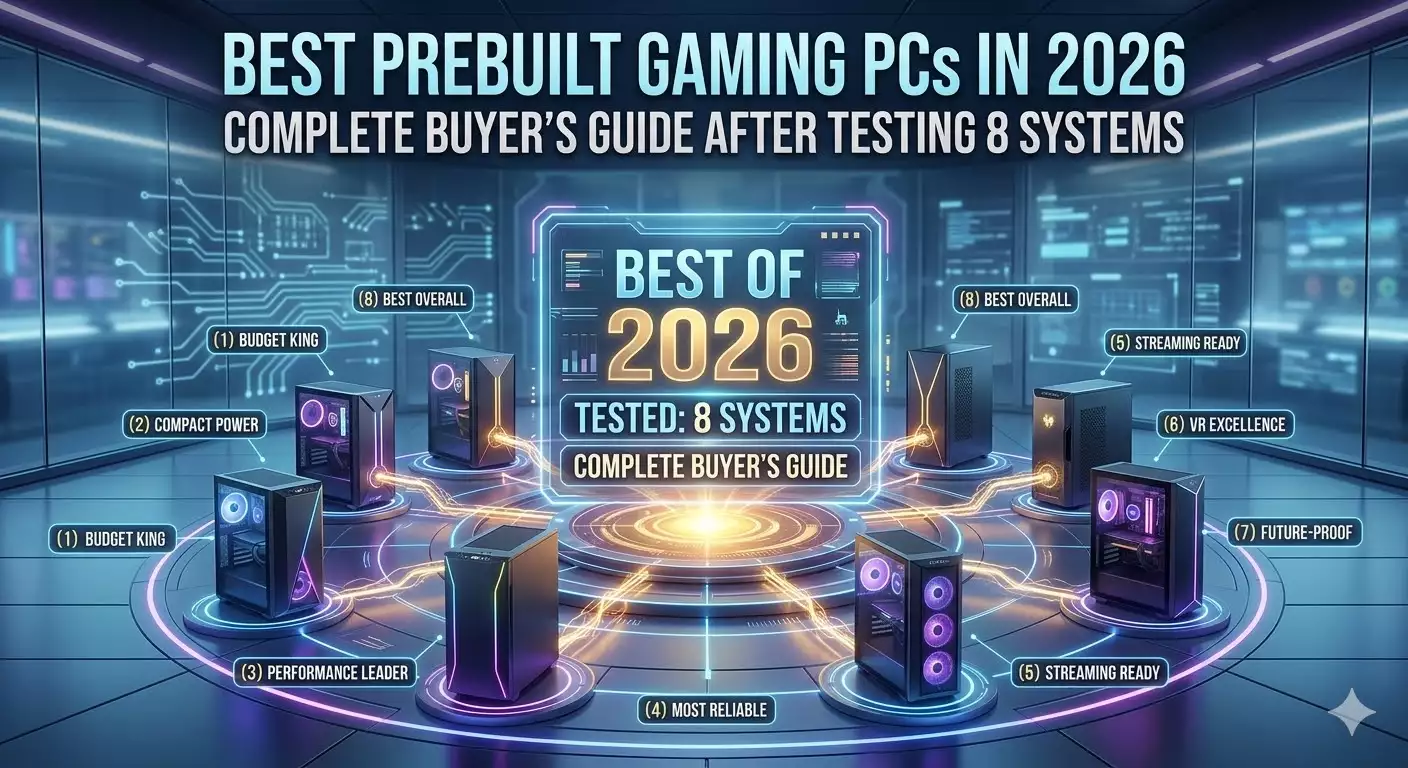

Best Prebuilt Gaming PCs In 2026 Complete Buyer S Guide After Testing Best Prebuilt Gaming PCs In 2026 Complete Buyers Guide After Testing 8 Systems . Top 10 Most Anticipated Games Of 2026 What To Watch Out For TVN GAMES IN 2026 . Future Proof Gaming Video Editing PC Build Inside Editors 6.Future Proofing Your Gaming Video Editing PC For 2026 2028 . Building Your Ultimate PC Setup For Gaming Where Do You Begin Best Windows Settings For Gaming 2026 Banner.webp. The Ultimate Gaming PC Build 2026 Guide By Xidax 1 Unnamed


Best Console Gaming Setup 2026 For Ultimate Experience. Building Your Ultimate Full PC Gaming Setup Discover How Gaming Desk Setup . Best Budget Gaming PC Builds For 2026 500 800 Best Budget Gaming PC Builds For 2026.webp. Solar Gaming Setup Essentials 2026 Solar Gaming Setup 2026 Power Guide Banner.webp. Gamer LEVEL UP YOUR FUTURE IN 2026 WITH GAMERZONE Start The New Media


How To Afford Games After Buying Hardware In 2026 Org 1 2. 10 Best Gaming Phones In 2026 10 Best Gaming Phones 2026 Main . How To Build A Unique Gaming Community Online In 2026 BleachExile Gaming Community Online 800x450 . Build PC 2026 Per GTA VI Potenza Massima E Bolletta Minima Generated Images 6