Unlocking the full visual potential of Roblox on your laptop can dramatically enhance your gaming experience. Many gamers, especially those balancing busy lives with their passion for play, often find themselves squinting at crucial details or missing out on the vibrant world Roblox offers due to improper zoom settings. This comprehensive guide provides step-by-step instructions and expert tips on how to zoom in on Roblox on your laptop effectively, ensuring you catch every detail and optimize your gameplay. From keyboard shortcuts to mouse alternatives and troubleshooting common issues, we cover everything you need to know to gain better control over your in-game perspective. Dive into a clearer, more engaging Roblox adventure and never miss a beat again with these essential zooming techniques designed for the modern laptop gamer. Stay ahead of the curve and elevate your play.
Q: How do I zoom in on Roblox using my laptop's keyboard?
A: To zoom in on Roblox with your laptop keyboard, the primary keys are 'I' to zoom in and 'O' to zoom out. In some games, the '+' and '-' keys on the numeric keypad or the Page Up and Page Down keys may also function. These controls allow for quick adjustments to your in-game perspective, helping you focus on details or broaden your view as needed.
Q: What are the best methods to zoom in Roblox without a mouse on a laptop?
A: If you don't have a mouse, the best methods to zoom in Roblox on a laptop involve using your keyboard's 'I' and 'O' keys, or your touchpad's two-finger scroll gesture. Many touchpads allow you to place two fingers and slide them up or down to simulate a scroll wheel, which can zoom your camera in and out effectively in Roblox experiences.
Q: Can I customize my zoom controls within Roblox settings on a laptop?
A: Roblox primarily uses fixed keybinds for zooming ('I' and 'O'). While you can adjust camera sensitivity in the in-game settings (press Esc, then go to Settings), direct remapping of zoom keys isn't usually an option within Roblox itself. For extensive customization, third-party keyboard remapping software like AutoHotkey might be considered, though always with caution.
Q: Why is my Roblox zoom not working on my laptop, and how can I fix it?
A: If your Roblox zoom isn't working, first check for conflicting key presses or if the specific game has custom camera controls. Try restarting the Roblox game or application. Ensure your Roblox client and laptop drivers are up to date. Sometimes, a simple game restart can resolve temporary glitches affecting camera input, restoring your ability to zoom effectively.
Q: Does zooming in or out affect my laptop's performance while playing Roblox?
A: Generally, basic zooming in Roblox has a minimal impact on laptop performance. Changing your field of view doesn't significantly alter the game's rendering load unless you're zooming far out in an extremely graphically intensive game, which might slightly increase visible elements. For most scenarios, prioritizing comfortable zoom settings over minor performance concerns is recommended.
Q: Are there advanced camera tricks for better visibility in Roblox laptop gaming?
A: Beyond basic zooming, advanced Roblox camera tricks include adjusting your field of view (FOV) if the game allows, which can give a wider or narrower perspective. Some games also offer first-person toggle options for immersive detail. Learning to quickly switch between various zoom levels and perspectives using keyboard shortcuts is crucial for tactical awareness and visual enjoyment.
Q: How can I reset my Roblox camera zoom to default on my laptop if it gets stuck?
A: If your Roblox camera zoom gets stuck, try pressing 'Esc' to open the in-game menu and then close it, which can sometimes reset camera states. If that doesn't work, exiting the current game experience and rejoining it typically resets the camera to its default starting position and zoom level. A full restart of the Roblox application is also a reliable fix for persistent issues.
Welcome, fellow gamers! In a world where 87 percent of US gamers regularly engage with their favorite titles, often averaging over 10 hours a week, optimizing your gameplay experience is more crucial than ever. For many of us balancing jobs, families, and life's endless to-do list, gaming is our cherished escape, a time for relaxation, skill-building, and social connection. Roblox, with its vast universe of user-created games, offers endless possibilities, but sometimes, a simple thing like getting the perfect view can make all the difference. Are you tired of squinting at tiny text, missing subtle cues, or feeling disconnected from the action because your camera perspective isn't quite right? You're not alone.
This month, many players are diving into social and cozy games within Roblox, where seeing fine details or the broader environment is key to collaboration and enjoyment. Whether you're exploring a new Adopt Me pet, building a masterpiece in Bloxburg, or strategizing in a fast-paced obby, knowing how to zoom in on Roblox on your laptop effectively can transform your experience. We understand that you value performance optimization, value for money, and staying current without the hype. That's why this guide is designed to cut straight to the chase, offering practical, no-nonsense solutions to help you master your Roblox camera controls and ensure your gaming sessions are as immersive and enjoyable as possible. Let's dive in and elevate your Roblox adventure.
How Do I Zoom In On Roblox Using My Laptop's Keyboard?
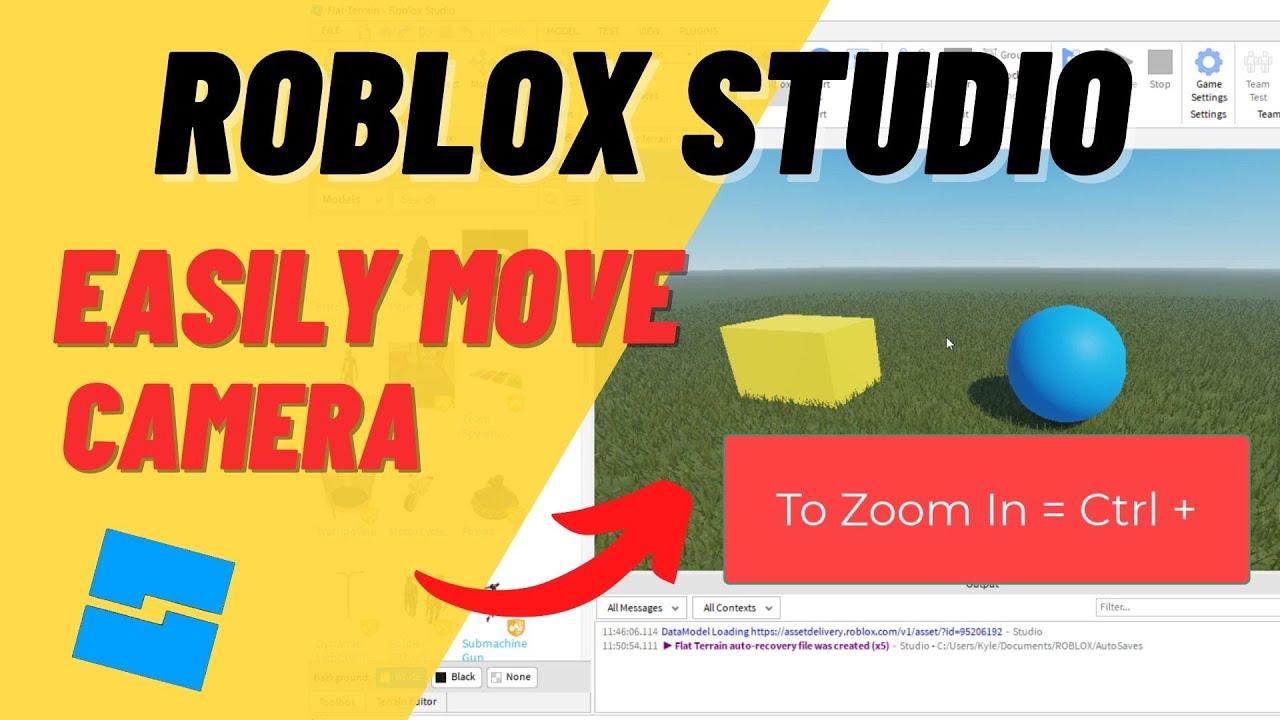
For many laptop gamers, the keyboard is your primary interface, and Roblox offers intuitive keyboard shortcuts for camera control. The most common and direct method to zoom in on Roblox is by using the 'I' and 'O' keys. Pressing 'I' will zoom your camera in, bringing your character closer to the screen and revealing more detail. Conversely, pressing 'O' will zoom out, widening your field of view. Some games may also support the '+' and '-' keys on your numeric pad, if your laptop has one, or even the Page Up and Page Down keys. Experiment within your chosen Roblox experience, but 'I' and 'O' are your go-to for quick adjustments.
What Are The Mouse Scroll Alternatives For Zooming In Roblox On A Laptop?
While a dedicated mouse with a scroll wheel offers the most fluid zoom experience, it's not always practical for every laptop setup. If you're relying on your laptop's touchpad, you have several alternatives. Many touchpads support a two-finger scroll gesture: placing two fingers on the touchpad and moving them up or down often mimics a scroll wheel, allowing you to zoom in or out in Roblox. Alternatively, if your touchpad has dedicated scroll areas on the side, dragging your finger along these can also work. If these gestures aren't active, ensure your touchpad drivers are up-to-date and check your laptop's settings for touchpad customization options, as these can usually be enabled or adjusted for a smoother experience.
Can I Customize Zoom Controls In Roblox Settings On A Laptop?
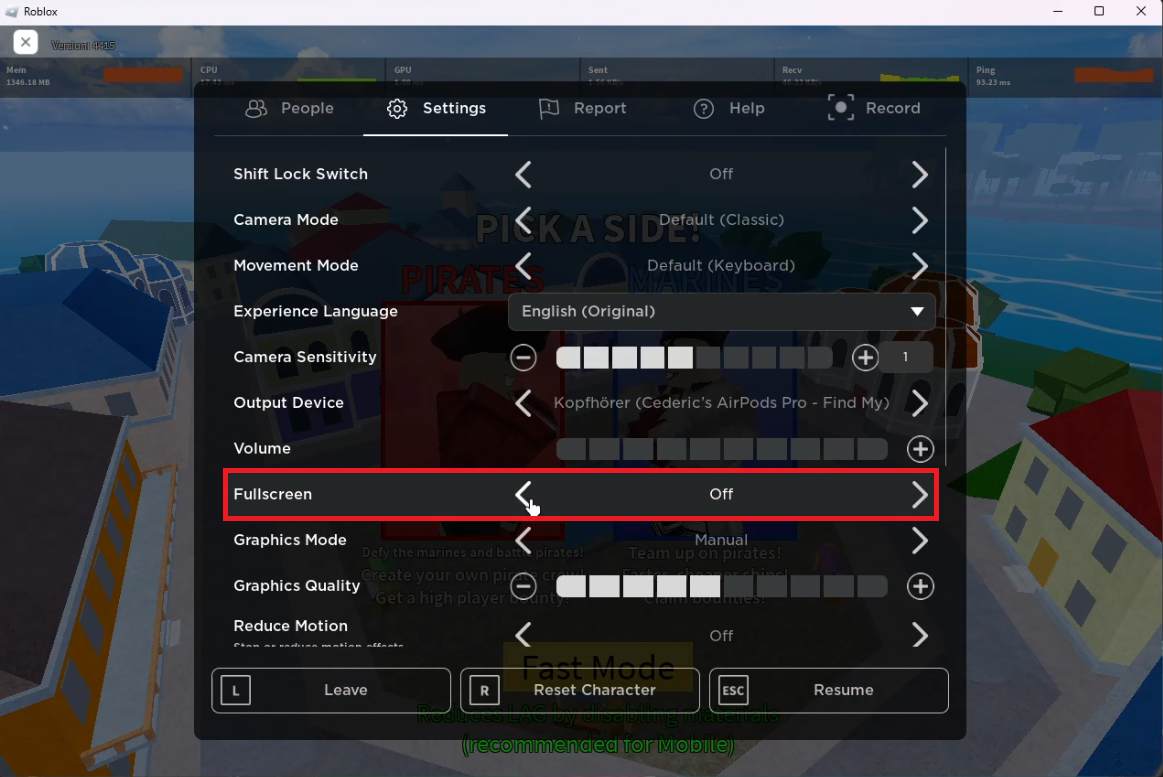
Yes, Roblox does offer some customization for camera controls, though the extent can vary slightly. You can access these settings by pressing the 'Esc' key during gameplay to bring up the in-game menu, then navigating to 'Settings.' Look for options related to camera movement or controls. While direct remapping of the 'I' and 'O' zoom keys isn't always available within Roblox itself, you can often adjust camera sensitivity, which impacts how quickly your camera responds to inputs. Some advanced laptop users might use third-party software or keyboard remapping tools (like AutoHotkey) to assign custom keys if specific Roblox games do not offer the desired flexibility, but always exercise caution with external programs.
Why Isn't My Roblox Zoom Working On My Laptop?
Experiencing non-responsive zoom controls in Roblox can be frustrating, especially when you're in the middle of a crucial build or battle. Several factors could be at play. First, ensure you're not accidentally holding down another key that might conflict with the zoom input. Second, sometimes the game itself or your Roblox client might be experiencing a temporary glitch. Try restarting the Roblox game or even the entire Roblox application. Outdated graphics drivers or an older version of the Roblox player can also cause control issues. Finally, some specific Roblox games or experiences might override default controls or have their own unique camera systems, so what works in one game might not work identically in another.
Are There Any Third-Party Tools To Enhance Roblox Zooming On A Laptop?
While Roblox itself provides core zoom functionality, some gamers seek enhanced control or accessibility features through third-party tools. For keyboard remapping, programs like AutoHotkey (Windows) or Karabiner-Elements (macOS) allow you to customize key bindings, potentially assigning zoom functions to more convenient keys. For touchpad users, ensuring your touchpad drivers are fully updated and configured correctly through your laptop manufacturer's software (e.g., Synaptics, Elan) can significantly improve gesture responsiveness. However, a word of caution: always download software from reputable sources to avoid malware, and be aware that using certain tools that heavily modify game inputs might, in rare cases, conflict with Roblox's terms of service if they provide an unfair advantage. Stick to basic remapping for comfort rather than seeking competitive edges.
How Does Zooming Affect Gameplay Performance On Roblox Laptop?
Generally, simply zooming in or out in Roblox should have a negligible impact on your laptop's performance. The game engine is designed to render what's visible on screen, and changing the zoom level primarily alters the camera's field of view, not the overall number of objects being processed. However, if you zoom far out in a very graphically intensive game, your laptop might need to render more on-screen elements, potentially leading to a slight dip in frame rate on older or less powerful machines. Conversely, zooming far in often reduces the visible elements, which can sometimes provide a marginal performance boost if your system is struggling. For most modern laptops, this effect is minimal, and prioritizing a comfortable view is key.
What Are The Benefits Of Proper Zooming In Roblox For Adult Gamers?
For adult gamers who value relaxation, fun, and skill-building, proper zooming in Roblox offers numerous benefits. It allows for better situational awareness in complex games, helping you spot enemies, resources, or objectives that might otherwise be overlooked. In building or design games, precise zooming enables meticulous detail work, making your creations truly shine. For social play, zooming in can enhance immersion, bringing you closer to character interactions or allowing you to appreciate the details of shared experiences. It reduces eye strain, particularly during longer gaming sessions after a day of work, and contributes to a more comfortable, focused, and ultimately more enjoyable gaming session, turning a simple play into a truly engaging escape.
How To Reset The Zoom In Roblox On A Laptop If It's Stuck?
Sometimes, the Roblox camera can feel
Master Roblox laptop zoom with keyboard mouse and settings. Optimize visual clarity for enhanced gameplay. Troubleshoot common zoom issues and improve performance. Learn to customize controls for a personalized experience. Discover benefits of proper zooming for better immersion.
35
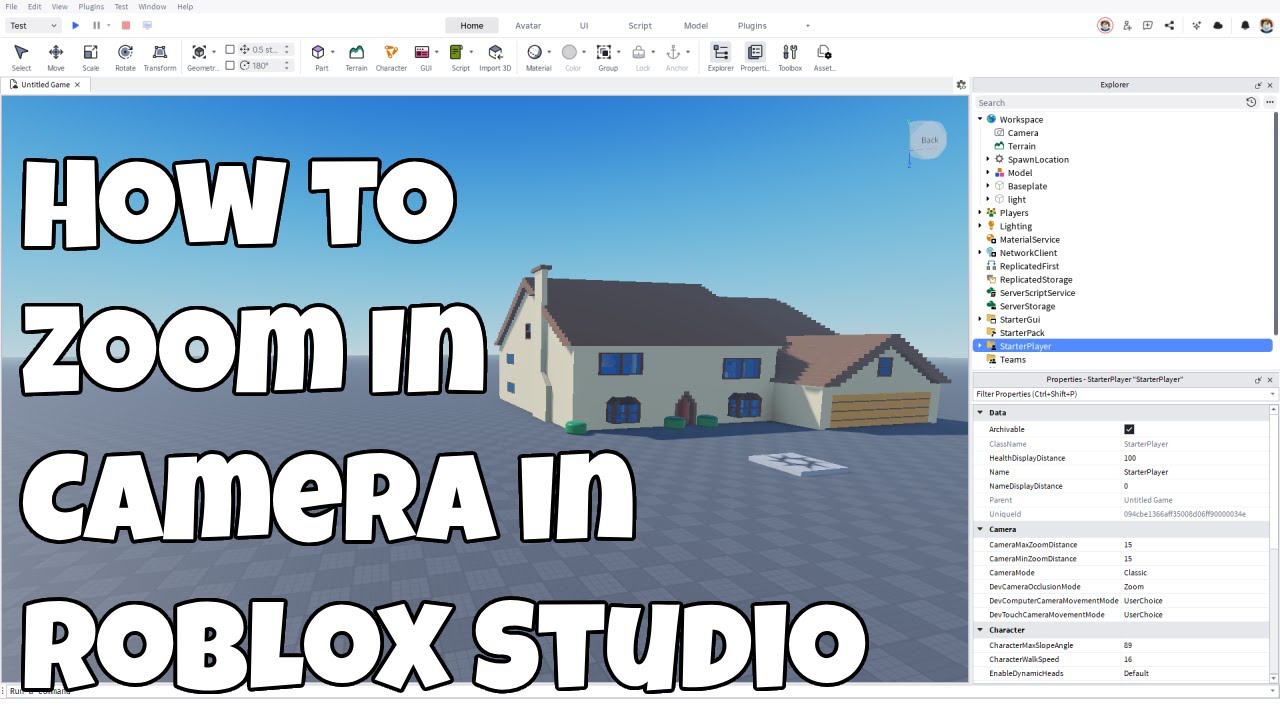


Change Camera Zoom Roblox At Guadalupe Wolf Blog Como Hacer Zoom En Roblox Pc . How To Zoom In Camera In Roblox Studio YouTube . How To Zoom IN OUT On Roblox PC Quick Guide 2025 YouTube . How To Zoom IN And OUT On Roblox PC 2025 YouTube . Change Camera Zoom Roblox At Guadalupe Wolf Blog



Change Camera Zoom Roblox At Guadalupe Wolf Blog . Change Camera Zoom Roblox At Guadalupe Wolf Blog . Change Camera Zoom Roblox At Guadalupe Wolf Blog . How To Control Roblox Camera With Mouse At Mazie Samuel Blog . How To Make ZOOM IN AIM In Roblox Studio Tutorial YouTube Hqdefault



How To Fix Roblox Zoom In And Out Tutorial 2024 YouTube . How To Zoom In Out On Laptop Or PC In Windows YouTube . How To Zoom IN And OUT On Roblox YouTube . How To Download Roblox Images In 2026 A Quick Guide . How To Do Full Screen On Roblox Pc Infoupdate Org


How To Zoom In And Zoom Out Laptop Screen Windows 10 11 YouTube . Prediksi Dan Leak Event Christmas Fish It Ditusi Blog Cara Main Roblox Di Laptop . Can Roblox Really Harm Your Laptop Exploring The Facts . Want To Play Roblox On PC Your 2026 Guide Awaits . Roblox How To Zoom Out On Xbox Simple Guide YouTube


How To Make A Google Meet On Chromebook Robots Net How To Download Roblox On Chromebook 1696019816 . How To Play Roblox On A School Laptop In 2024 UNBLOCKED YouTube . How To Restart Computer Quick Secure Methods How To Zoom In Windows . How To Download Roblox Images In 2026 A Quick Guide . Want To Play Roblox On PC Your 2026 Guide Awaits Roblox System Shot



How To Install Roblox On A Computer Easily 2026 Guide . How To Install Roblox On A Computer Easily 2026 Guide . How To Use Voice Chat In Roblox Laptop PC 2026 Full Guide YouTube . What Do The Lights On My Router Mean Techdim What Do You Need To Run Roblox On A Laptop 2 . How To Message On Roblox 2026 A Quick Guide



How To Move Your View In Roblox On Laptop Look Around With Keyboard . How To Play Roblox In Any Resolution On PC Tech How 4 Roblox Video Settings. How To Install Roblox On A Computer Easily 2026 Guide Select Roblox And Click. How To Zoom In Or Out In Roblox On Laptop Nosware Zoom In On Roblox . How Do You Update Roblox On Windows 11 For 2026