Gaming on PC is fantastic but sometimes a keyboard and mouse just don't cut it especially for certain genres like racing fighting or sports games. This comprehensive guide explores everything you need to know about choosing setting up and optimizing a pc controller for gaming. Whether you are a casual gamer looking to relax after work or a dedicated enthusiast aiming for peak performance understanding your controller options is key. We will cover the best controllers compatibility issues setup tips troubleshooting common problems and even how to balance your gaming passion with daily responsibilities. Stay current with the latest trends and make smart choices for your gaming setup maximizing your fun and skill without breaking the bank. This article is packed with practical advice to enhance your PC gaming experience right now.
What are the top PC controllers for gaming in 2026?
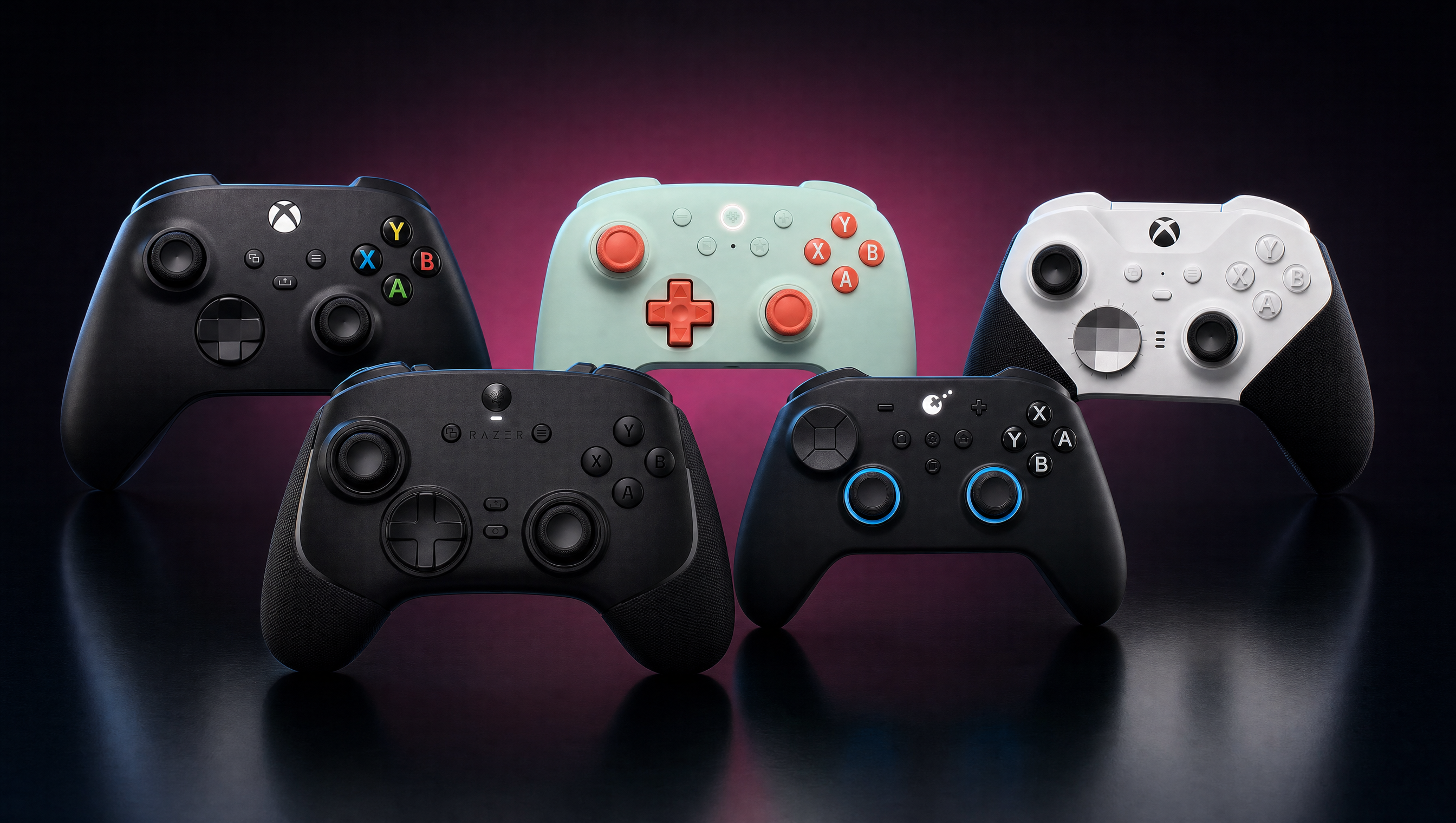
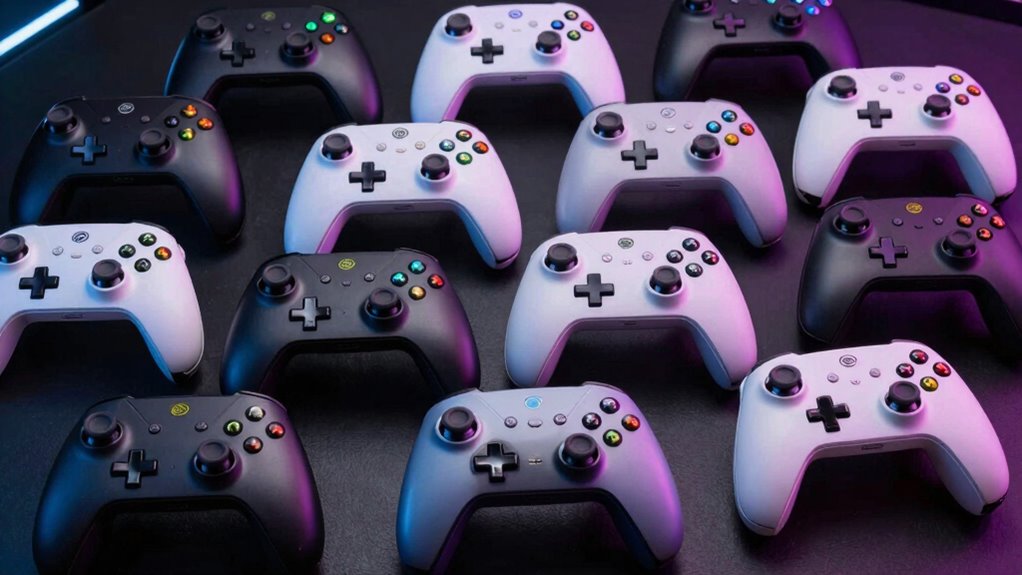
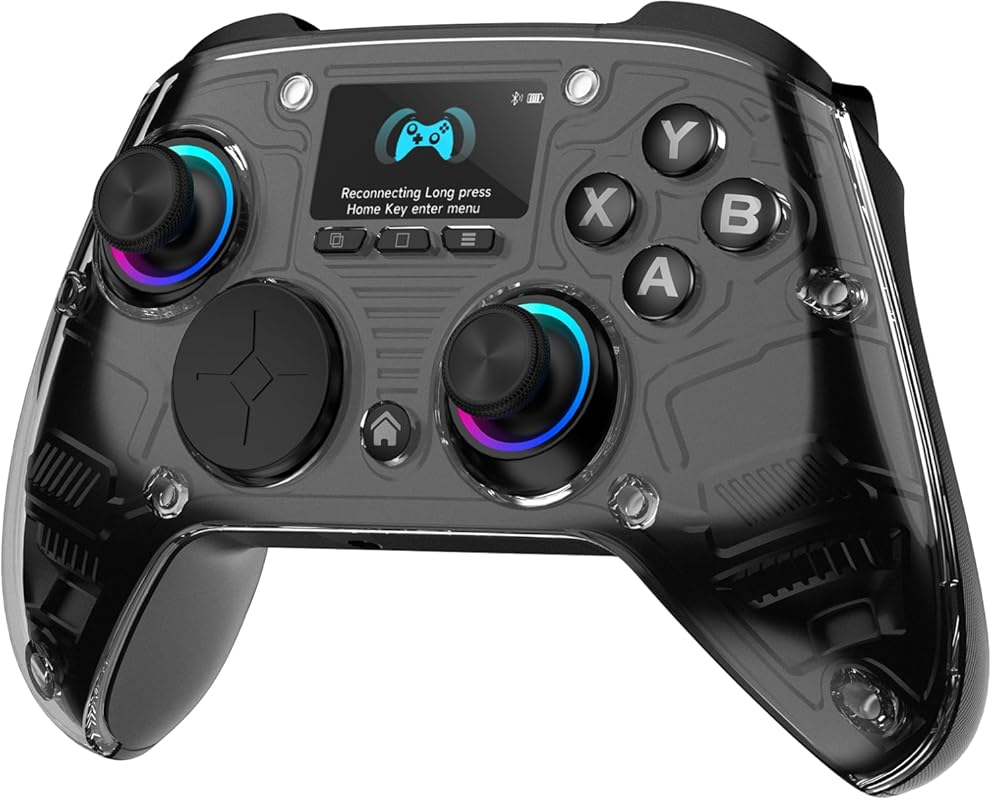
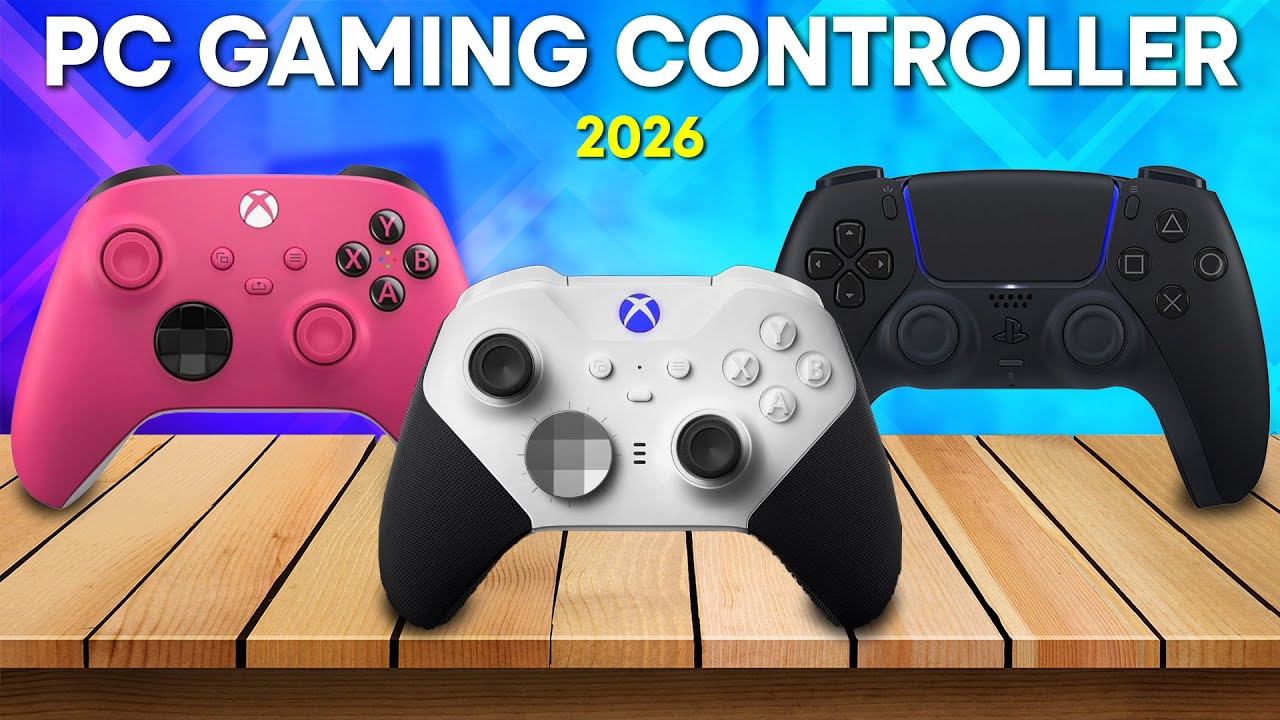
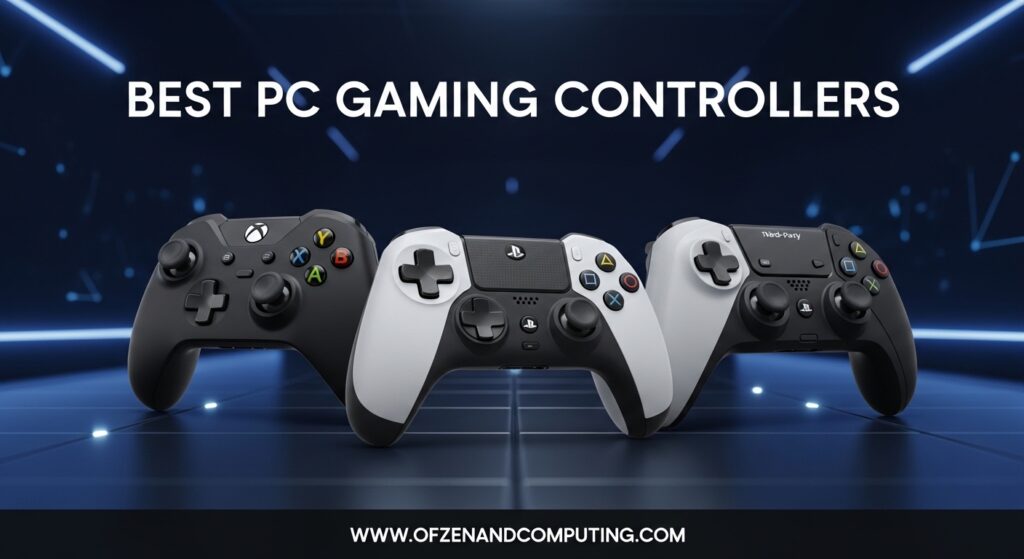
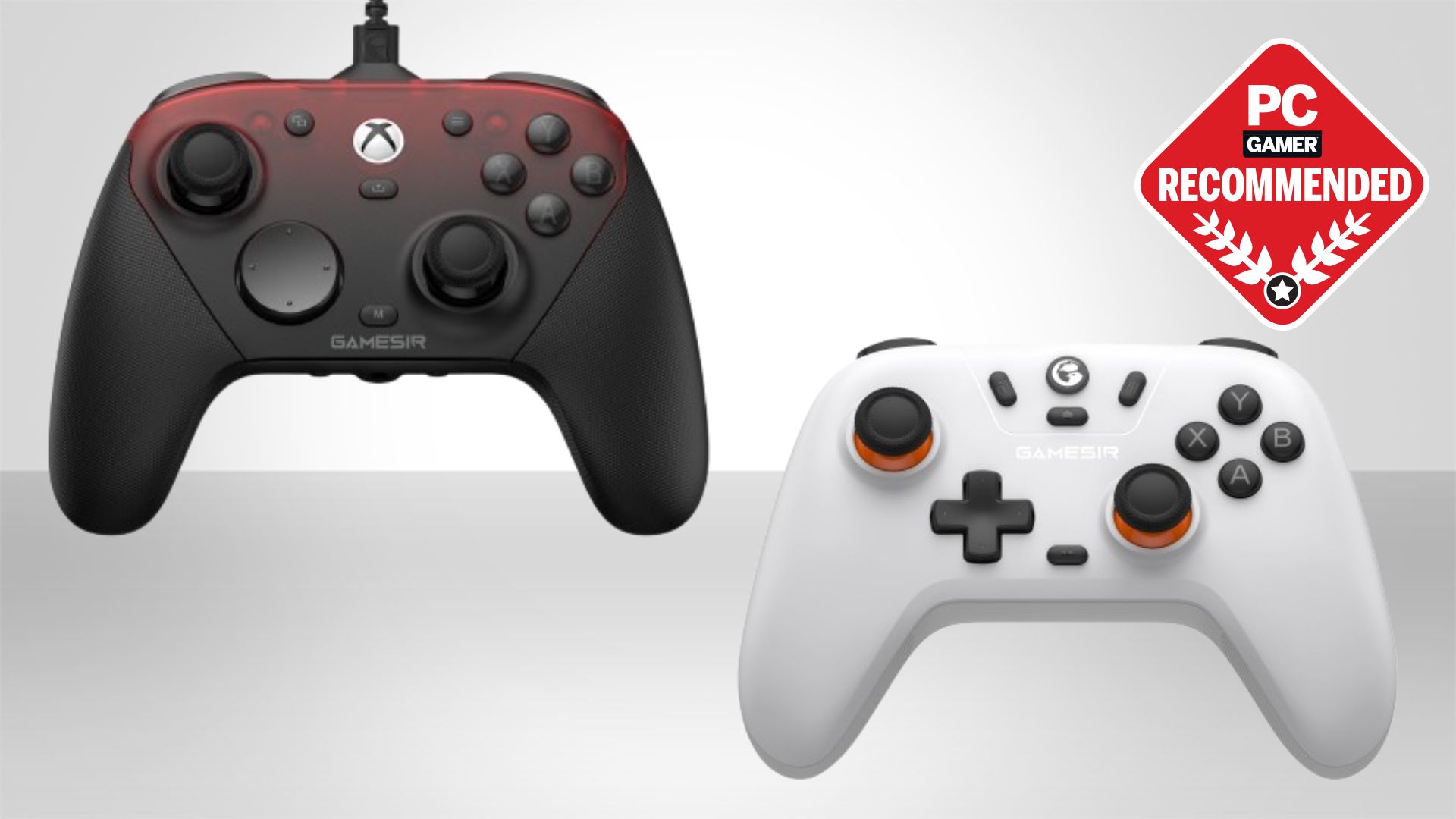
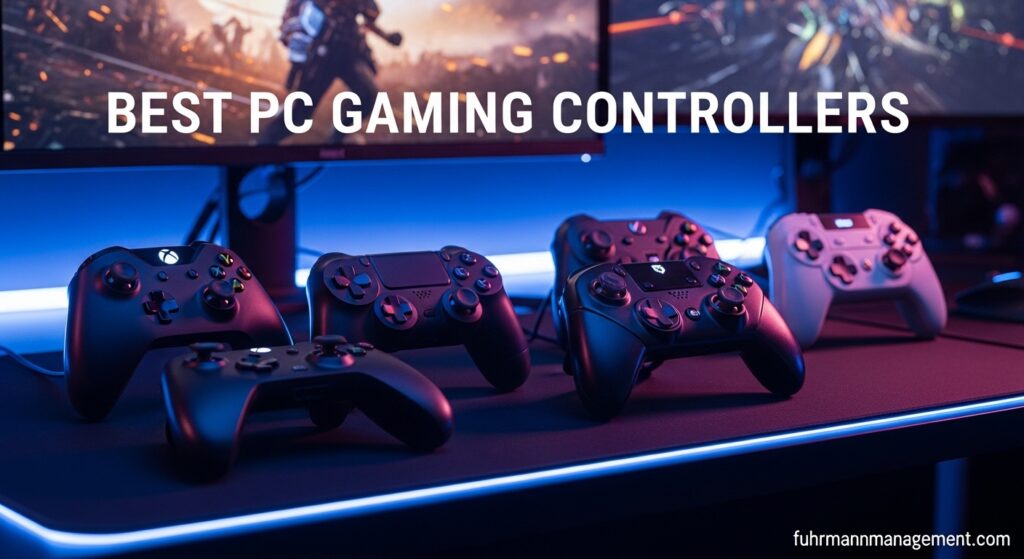
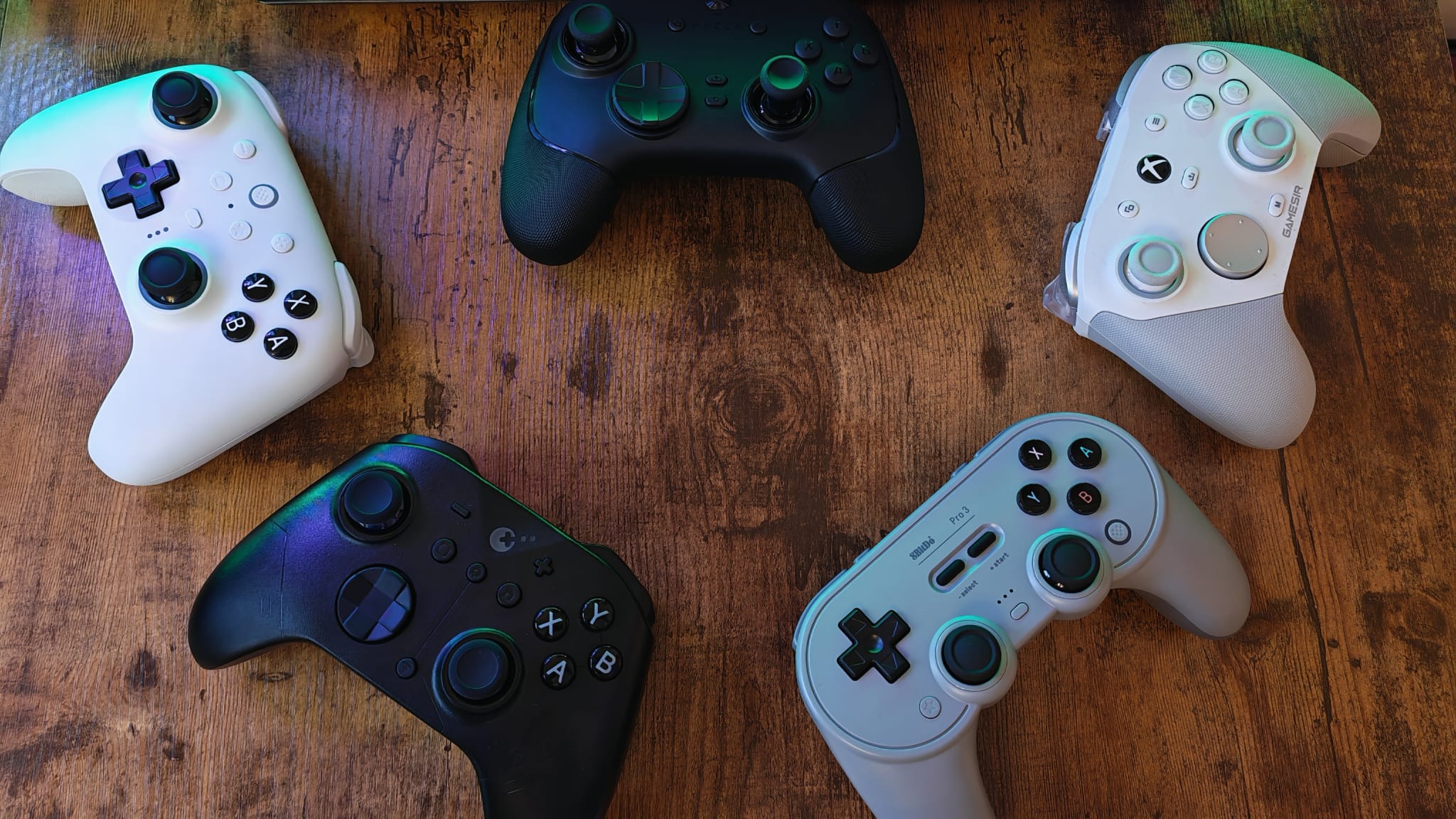
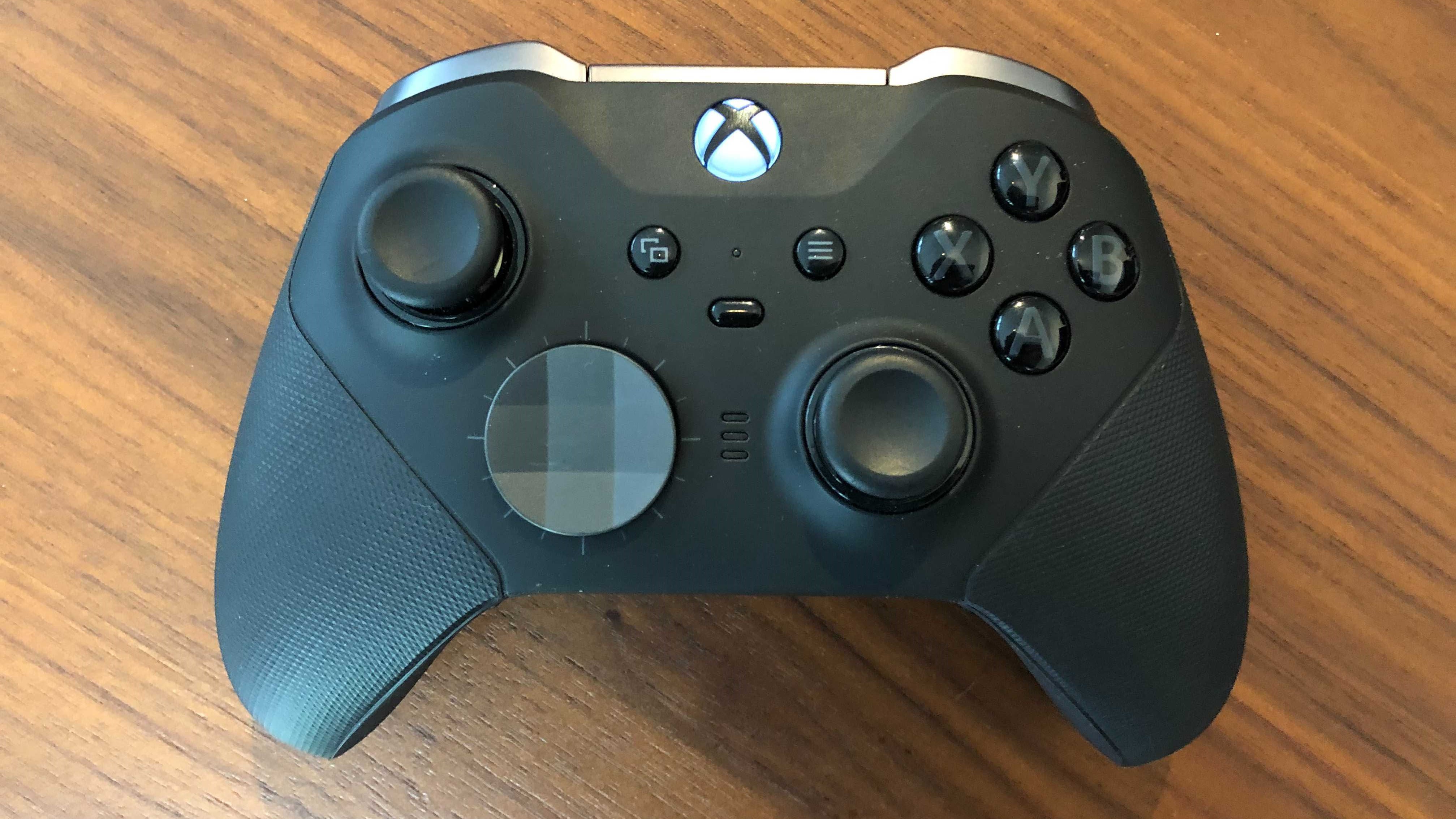
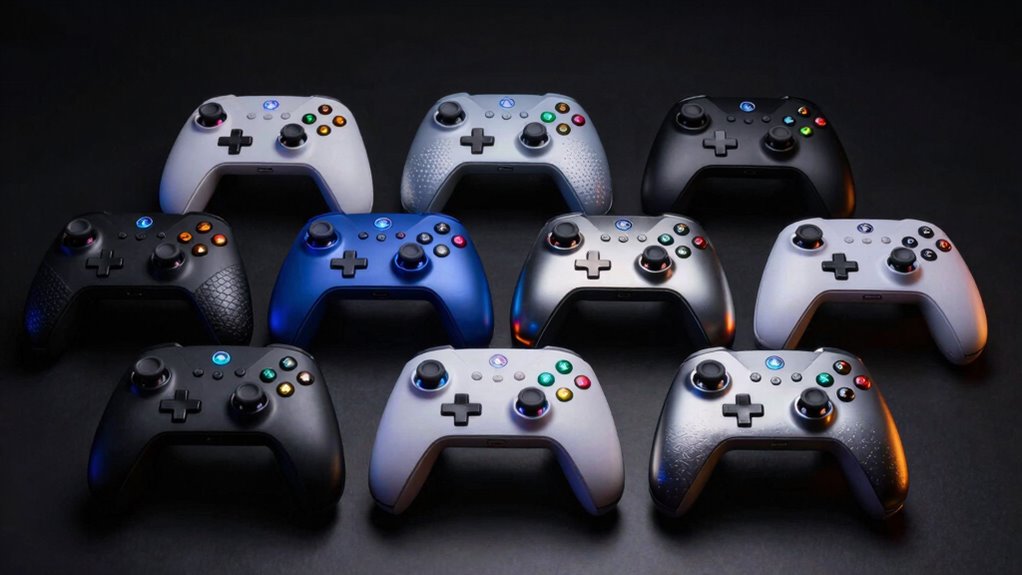
For PC gaming, the Xbox Wireless Controller offers native Windows support and excellent ergonomics, making it a reliable all-rounder. The Xbox Elite Wireless Controller Series 2 caters to competitive players with extensive customization like interchangeable paddles and trigger stops. PlayStation’s DualSense controller provides immersive haptic feedback and adaptive triggers, though it often requires third-party software for full PC compatibility. For budget-conscious gamers, the 8BitDo Ultimate C Wired Controller or 8BitDo Pro 2 offer great value with quality builds and broad compatibility.
How do I connect a PC controller for gaming to my computer?
Most PC controllers connect either via a wired USB cable for instant plug-and-play functionality, or wirelessly. For wireless connections, if your PC has Bluetooth, put the controller in pairing mode and add it through Windows Settings > Bluetooth & devices. Some controllers, especially Xbox models, may use a dedicated USB wireless adapter for a more stable and lower-latency connection, which you simply plug in and sync with the controller.
Why should I choose a PC controller over keyboard and mouse for certain games?
A PC controller for gaming excels in genres like racing, fighting, sports, and action-adventure games due to its analog input for nuanced movement and triggers for precise acceleration/braking. It enhances immersion, provides superior comfort for long sessions, and facilitates local multiplayer, making social gaming more accessible and enjoyable for busy adults. Many modern titles are also designed with controller optimization in mind, offering a more intuitive experience.
What's the difference between a wired and wireless PC controller for gaming performance?
Modern wireless PC controllers, especially those with proprietary adapters or advanced Bluetooth 5.0, offer input lag that is practically imperceptible to the average gamer. They provide convenience and freedom from cables. Wired controllers, however, guarantee zero latency and never run out of battery, making them the preferred choice for some professional or highly competitive players who prioritize absolute reliability and precision. Battery life and potential signal interference are the main considerations for wireless.
How can I fix common PC controller connection or input issues?
Start by checking physical connections (USB port/cable) or Bluetooth pairing. Ensure your PC’s drivers are updated via Device Manager or by restarting your system. For input problems, calibrate the controller using Windows' "joy.cpl" tool or check in-game settings. Disable conflicting third-party software (like DS4Windows if not configured correctly). For disconnects, check power-saving settings for USB ports and consider updating the controller's firmware if available.
Are there good budget-friendly PC controller options that still perform well?
Absolutely. You can find excellent budget PC controllers for gaming without spending a fortune. Options like the 8BitDo Ultimate C Wired Controller or the PowerA Enhanced Wired Controller for Xbox provide reliable performance, good ergonomics, and seamless PC compatibility at an affordable price point, typically ranging from $30-50. Always prioritize reputable third-party brands and read recent reviews for durability and driver support to ensure value for money.
How do I customize my PC controller for a better gaming experience?
Customizing your PC controller involves using platform-specific tools. Steam Input allows extensive remapping, deadzone adjustments, and sensitivity fine-tuning for any controller type across its library. For official Xbox controllers, the Xbox Accessories App offers similar features and firmware updates. PlayStation controllers can be customized through community-developed tools like DS4Windows. Always check in-game settings too, as many titles offer sensitivity and control scheme adjustments to tailor your playstyle.
For many PC gamers balancing a career, family, and life's demands, finding time to unwind with their favorite titles is a precious commodity. While the precision of a keyboard and mouse is unmatched for competitive shooters and strategy games, there are countless instances where a dedicated pc controller for gaming simply offers a more comfortable, immersive, and often superior experience. Think about diving into the latest open-world adventure, soaring through a flight simulator, or tearing up the track in a racing game – these are moments designed for the intuitive feel of a gamepad in your hands. According to recent US gaming statistics, a whopping 87% of gamers play regularly, often dedicating 10 or more hours a week, highlighting gaming's role as a vital outlet. For many adults, gaming isn't just a hobby; it's a way to relax, connect with friends, and build new skills, all while staying current with the vibrant gaming world. Yet, navigating the vast sea of PC controller options, dealing with setup quirks, or optimizing performance can feel like another chore. This guide is designed to cut through the confusion, offering practical solutions and expert advice so you can spend less time troubleshooting and more time enjoying your games.
We understand that as an adult gamer, you value efficiency, reliability, and value for money. This article will equip you with the knowledge to select, set up, and optimize the perfect pc controller for gaming, ensuring seamless integration into your busy life. We'll tackle common pain points, from frustrating connection issues to finding the right controller on a budget, and even discuss how these devices can enhance your social gaming experiences. Get ready to transform your PC gaming sessions into truly enjoyable and stress-free escapes, maximizing every moment you dedicate to the digital realm.
What is the Best PC Controller for Gaming in 2026?
Choosing the "best" pc controller for gaming is highly subjective, depending on your preferred genres and budget, but a few stand out consistently for their build quality, features, and PC compatibility. The Xbox Wireless Controller remains a top contender due to its native support on Windows, excellent ergonomics, and versatility across genres. It's a reliable workhorse for everything from action RPGs to sports titles. For those seeking premium features, the Xbox Elite Wireless Controller Series 2 offers unparalleled customization with interchangeable thumbsticks, paddles, and trigger stops, ideal for competitive players who demand precise control and quick inputs. On the PlayStation side, the DualSense wireless controller provides an immersive experience with its haptic feedback and adaptive triggers, though it often requires third-party software like DS4Windows for full functionality on PC games that don't natively support its advanced features. Lastly, the 8BitDo Ultimate C Wired Controller offers a fantastic budget-friendly wired option, blending classic design with modern features and solid performance.
Consider what truly matters for your gaming habits. Do you primarily play fighting games? A specialized arcade stick might be better. Are you into flight sims? A HOTAS setup is key. For most general PC gaming, especially if you're looking to relax on the couch, the comfort and familiarity of an Xbox-style controller are hard to beat. Always check reviews for durability and driver support before making your final decision.
How Do I Connect a PC Controller for Gaming to My Computer?
Connecting a pc controller for gaming to your computer is usually straightforward, but the method varies slightly based on the controller type. Most modern controllers offer both wired and wireless connection options. For a wired connection, simply plug the controller into an available USB port on your PC. Windows typically detects and installs the necessary drivers automatically within a few seconds. This is often the most reliable method, ensuring no latency and no battery concerns.
- Bluetooth: Many controllers, including the Xbox Wireless Controller (newer models), DualSense, and various third-party gamepads, support Bluetooth.
- Ensure your PC has Bluetooth enabled. If not, you might need a USB Bluetooth adapter.
- Put your controller into pairing mode (e.g., press and hold the small sync button on Xbox controllers, or the PlayStation button and Share button simultaneously on DualSense).
- On your PC, go to Settings > Bluetooth & devices > Add device.
- Select "Bluetooth" and choose your controller from the list.
- Follow any on-screen prompts to complete the pairing.
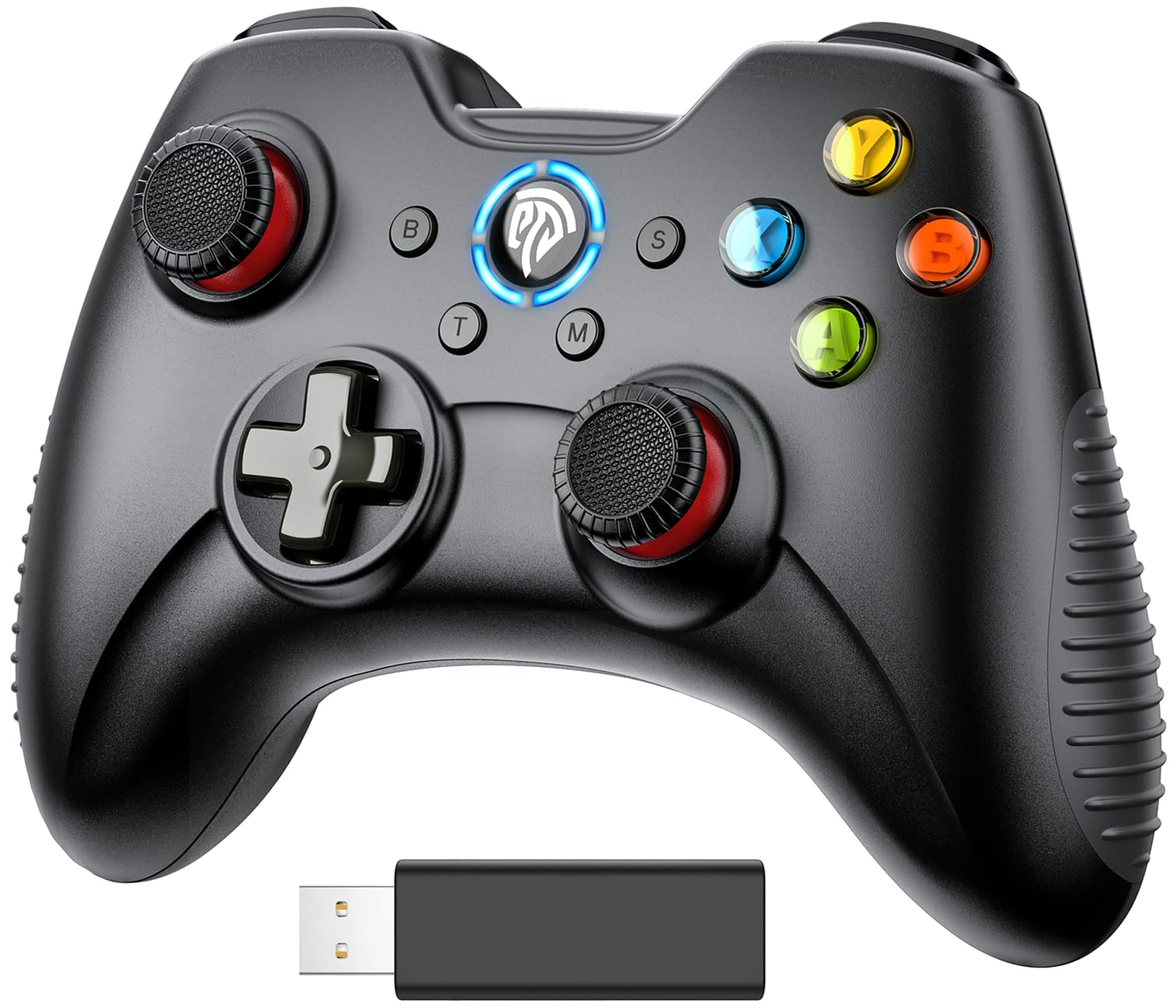
- Wireless Adapter (Proprietary): Some controllers, like older Xbox Wireless Controllers or specific third-party models, use a dedicated USB wireless adapter for a more stable and lower-latency connection. Plug the adapter into a USB port, turn on your controller, and press the sync buttons on both the adapter and the controller to establish a connection. This method often offers superior performance compared to standard Bluetooth, which is important for competitive titles.
Always ensure your Windows operating system is up-to-date, as updates often include new controller drivers and compatibility improvements. If you face issues, a quick restart of your PC can sometimes resolve minor glitches.
Why Should I Use a PC Controller for Certain Games?
While the keyboard and mouse combo reigns supreme for precision in first-person shooters and real-time strategy games, a pc controller for gaming truly shines in a multitude of other genres, offering an experience that's often more intuitive and enjoyable for the average gamer. For those balancing busy schedules, comfort during relaxation is key, and a controller provides a natural ergonomic fit for extended play sessions on the couch or at a desk. Racing games like Forza Horizon or F1 are significantly enhanced by analog triggers, allowing for nuanced acceleration and braking, far beyond simple on/off key presses. Fighting games such as Street Fighter 6 or Mortal Kombat 1 feel much more fluid with a D-pad and face buttons designed for complex combos, rather than stretching fingers across a keyboard.
Furthermore, action-adventure titles like Elden Ring, Assassin's Creed, or many indie platformers often have control schemes optimized for gamepads, making movement, camera control, and special abilities feel more natural. Social gaming, a growing trend where friends gather either virtually or physically, also benefits immensely. Playing co-op games like It Takes Two or Overcooked with a controller alongside friends or family is simply more accessible and fun. Many modern titles, recognizing the widespread use of controllers, are designed with seamless controller integration, offering a plug-and-play experience that minimizes setup headaches and maximizes your precious gaming time.
Are Wireless PC Controllers as Good as Wired Ones?
The debate between wireless and wired pc controller for gaming has evolved significantly, with wireless technology closing the gap in performance. For the average gamer, modern wireless controllers, especially those using proprietary adapters or advanced Bluetooth 5.0, offer a practically imperceptible input lag, making them indistinguishable from wired options in most scenarios. This freedom from cables is a huge boon for comfort, allowing you to recline on a couch or game further from your monitor, which is perfect for adults who game to relax after a long day.
However, there are still considerations. Wired controllers offer absolute reliability: no batteries to recharge or replace, no signal interference issues, and guaranteed zero latency. For highly competitive esports titles where every millisecond counts, some pro players still opt for wired connections. Battery life is the primary concern for wireless options; forgetting to charge can interrupt a crucial gaming session. Most wireless controllers today offer decent battery life (15-40 hours), and many can be played while charging. High-quality wireless adapters, like Microsoft's Xbox Wireless Adapter for Windows, often provide a more stable and lower-latency connection than standard Bluetooth, making them a preferred choice for serious wireless gaming. Ultimately, for most busy gamers seeking convenience and a clutter-free setup, a good quality wireless pc controller for gaming is more than sufficient and provides an excellent experience.
How Can I Troubleshoot Common PC Controller Issues?
Encountering issues with your pc controller for gaming can be frustrating, especially when you're short on time. Here's a quick guide to troubleshooting common problems:
- Controller Not Connecting/Detected:
- Check Cables/Bluetooth: For wired, try a different USB port or cable. For wireless, ensure Bluetooth is enabled on your PC and the controller is in pairing mode. Remove and re-pair the device.
- Drivers: Go to Device Manager (search in Windows Start menu), expand "Human Interface Devices" or "Xbox Peripherals," right-click your controller, and select "Update driver." If issues persist, try "Uninstall device" and then restart your PC to reinstall drivers.
- Battery: For wireless, ensure batteries are charged or replaced.
- Input Lag/Delay:
- Wired vs. Wireless: If on wireless, try a wired connection.
- Interference: If using Bluetooth, ensure no other devices are interfering (e.g., too many Bluetooth devices in close proximity). A dedicated wireless adapter often mitigates this.
- Game Settings: Some games have controller input settings that might introduce lag. Check in-game options.
- Buttons Not Responding/Incorrect Inputs:
- Calibration: Windows has a built-in Game Controller Settings tool (search "joy.cpl" in Run dialog) where you can test and calibrate your controller.
- Software Conflicts: Third-party software (like DS4Windows for DualSense or remapping tools) can sometimes cause conflicts. Try disabling them.
- Steam Input: If playing on Steam, ensure Steam Input isn't causing issues. You can enable or disable controller support per game in Steam's settings.
- Controller Disconnecting Randomly:
- Power Saving: Check Windows power management settings to ensure USB ports aren't powering down to save energy.
- Interference/Range: Move closer to your PC or use a USB extension cable for wireless adapters.
- Firmware: Check the manufacturer's website for firmware updates for your controller. Many official controllers (Xbox, PlayStation) have companion apps for this.
A simple PC restart can often fix many transient issues. If all else fails, consult the controller's manual or the manufacturer's support website for specific troubleshooting steps.
What are Budget-Friendly PC Controller Options?
You don't need to break the bank to get a good pc controller for gaming. Many affordable options provide excellent value, making gaming accessible without stressing your budget. For around $30-50, you can find surprisingly robust controllers that mimic the feel and functionality of premium brands. The 8BitDo Ultimate C Wired Controller or the 8BitDo Pro 2 (which offers wireless options and extensive customization) are highly praised for their quality, classic design elements, and broad PC compatibility. They often come with a durable build and reliable performance.
Another strong contender in the budget category is the PowerA Enhanced Wired Controller for Xbox, which is officially licensed and works seamlessly with PC. While wired, it offers a comfortable ergonomic design similar to official Xbox controllers and often includes extra programmable buttons for added utility. For wireless budget options, look for reputable third-party brands like EasySMX or Redragon on platforms like Amazon. Always read recent reviews carefully to ensure driver support, build quality, and customer satisfaction. Sometimes, refurbished official controllers can also be a great deal if you purchase from a trusted retailer with a warranty. Remember, "value for money" means finding a balance between cost and performance that fits your casual or committed gaming style without overspending on features you might not use.
How Do I Customize My PC Controller Settings for Optimal Play?
Optimizing your pc controller for gaming can significantly enhance your experience, tailoring it to your unique preferences and the demands of specific games. Many modern controllers and PC platforms offer robust customization options. Here's how to get started:
- Steam Input: If you primarily game on Steam, its built-in Steam Input feature is incredibly powerful. You can map any controller (Xbox, PlayStation, Switch Pro, generic) to virtually any game, even those without native controller support.
- Go to Steam > Settings > Controller > General Controller Settings to enable support for your controller type.
- In your library, right-click a game > Properties > Controller. You can choose to use Steam Input or disable it.
- Inside a game, you can open the Steam Overlay (Shift+Tab by default) and go to Controller Configuration to remap buttons, adjust joystick deadzones, sensitivity, trigger settings, and even create complex action layers for different in-game contexts. This is crucial for fine-tuning precision.
- Controller Companion Apps: Official controllers often have dedicated apps:
- Xbox Accessories App (Microsoft Store): For Xbox controllers, you can remap buttons, adjust stick sensitivity, trigger deadzones, and even update firmware. Essential for Elite controllers.
- DS4Windows: For PlayStation DualShock 4 and DualSense controllers, this community-driven tool provides extensive remapping, profile management, and emulates an Xbox controller, making it compatible with most PC games.
- In-Game Settings: Always check the game's own controller settings. Many games allow you to invert axes, adjust look sensitivity, vibration intensity, and choose different control schemes. Experiment with these to find what feels most natural.
- Deadzones: Adjusting deadzones for joysticks can prevent "drift" (unintended movement when sticks are neutral) and fine-tune responsiveness. Start with small adjustments and test in-game.
Investing a little time in customization can transform a good gaming session into a great one, especially when you're trying to maximize your limited playtime for fun or skill-building.
Can PC Controllers Improve My Social Gaming Experience?
Absolutely! A pc controller for gaming is often the cornerstone of a fantastic social gaming experience, whether you're sharing a couch with loved ones or connecting with friends online. For many adults, gaming is not just about personal achievement but also about connection and shared fun. Local co-op and split-screen gaming, which are experiencing a resurgence, are almost exclusively designed for controllers. Imagine playing Mario Kart 8 Deluxe (via emulation or official PC ports if available) or recent hits like "It Takes Two" and "Overcooked" with friends on the same screen. These experiences are made seamless and enjoyable by multiple gamepads.
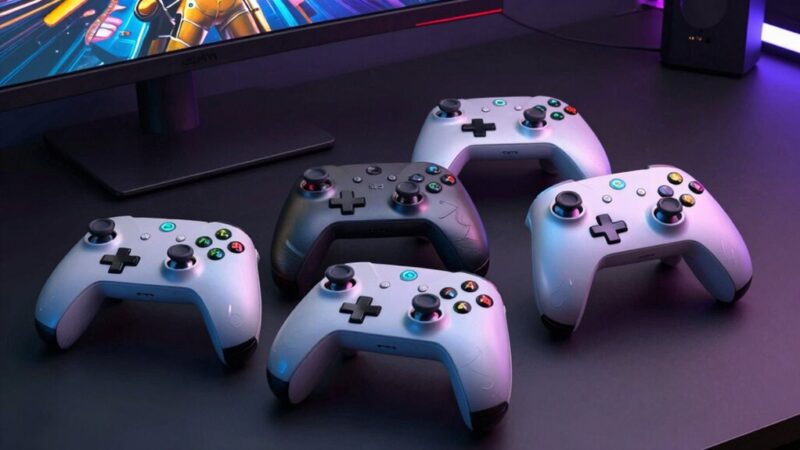
Even for online social play, where you might be using Discord to chat, using a controller for genres like fighting games, sports simulations, or even some MMOs (like Final Fantasy XIV, which has excellent controller support) can make your gameplay more relaxed and intuitive, allowing you to focus more on communication and camaraderie. The growing trend of "cozy games" and free-to-play social hubs often benefits from the easy pick-up-and-play nature of a controller. Having spare pc controllers for gaming is a smart move for any gamer who values social interaction, transforming your PC into a versatile entertainment hub for gatherings and online hangouts alike.
How to Balance PC Gaming with Work and Family Life?
For the average gamer, often around 36 years old and balancing numerous responsibilities, integrating a passion for PC gaming with a demanding life requires smart strategies. A pc controller for gaming can actually be a part of this solution by making gaming more accessible and comfortable in short bursts. Here's how to achieve that balance:
- Schedule Your Sessions: Treat gaming like any other hobby or commitment. Block out specific times in your week. This helps prevent gaming from encroaching on other responsibilities and provides dedicated relaxation time. Even 30-60 minute sessions can be incredibly rewarding.
- Communicate with Family: Let your family know when you plan to game. This avoids misunderstandings and ensures you're not missing out on family time. Sometimes, inviting them to join in (especially with a multi-controller setup for social games) can bridge the gap.
- Prioritize Relaxing Games: When time is limited, opt for games that offer quick satisfaction or relaxation rather than requiring massive time investments. Cozy games, puzzle games, or short bursts of a favorite action title with your pc controller for gaming can be perfect.
- Set Limits: Be honest about how much time you can realistically dedicate. Use built-in Windows features or third-party apps to track and limit screen time if needed.
- Value for Money & Time: Choose games and hardware (like a reliable, easy-to-set-up controller) that maximize your enjoyment per dollar and per minute. Avoid hype-driven purchases that might not fit your lifestyle.
- Socialize Strategically: Use gaming as a way to connect with friends. Scheduling specific co-op sessions or virtual hangouts can combine social time with hobby time.
Remember, gaming should be a source of stress relief and enjoyment, not another source of guilt. A well-chosen pc controller for gaming can make those precious moments of escape even more fulfilling.
What Are the Latest Trends in PC Controllers for Gaming?
The world of pc controller for gaming is constantly evolving, with several exciting trends shaping how we play in 2026. Keeping an eye on these helps you stay current without falling for every marketing gimmick. One significant trend is increased modularity and customization. More controllers are offering swappable components like thumbstick modules, D-pads, and back paddles, allowing gamers to fine-tune their device to specific games or ergonomic needs. This is a direct response to the desire for performance optimization and personalized experiences.
Another area of innovation is advanced haptic feedback and adaptive triggers, pioneered by the DualSense controller. While initially PlayStation-exclusive, we're seeing more PC games and third-party controllers integrating similar nuanced vibrations and trigger resistance to enhance immersion. This adds a new layer of sensory feedback that traditional rumble motors couldn't achieve. Cross-platform compatibility is also a major focus, with many new controllers aiming for seamless transitions between PC, mobile, and even cloud gaming services. With mobile gaming dominating a significant share of the market and cross-play becoming standard, versatile controllers are highly valued. Lastly, eco-friendly materials and sustainable manufacturing are gaining traction as gamers become more conscious consumers, seeking products that align with their values. These trends point towards a future where your pc controller for gaming is not just an input device, but a highly adaptable, immersive, and responsible part of your gaming ecosystem.
FAQ About PC Controllers for Gaming
Q: Do I need special drivers to use a PC controller?
A: Most modern controllers, especially Xbox-branded ones, are plug-and-play with Windows, automatically installing drivers. PlayStation controllers might require third-party software like DS4Windows for full functionality on many PC titles.
Q: Can I use my PlayStation or Switch controller on PC?
A: Yes, both PlayStation and Nintendo Switch Pro controllers can be connected to PC via Bluetooth or USB. However, for PlayStation controllers, you'll often need DS4Windows for full game compatibility and advanced features. Steam also offers robust support for various controllers.
Q: Is it worth buying an expensive "pro" PC controller?
A: For competitive gamers or those who value extreme customization and durability, a "pro" controller like the Xbox Elite Series 2 can be a worthwhile investment. For casual or budget-conscious gamers, standard controllers or quality mid-range options provide excellent value.
Q: How do I improve controller battery life?
A: To extend battery life, ensure your controller is fully charged, disable rumble/vibration in games if not needed, and consider purchasing rechargeable battery packs or high-capacity AA batteries for Xbox controllers. Some controllers have power-saving modes.
Q: Can I re-map controller buttons on PC?
A: Absolutely. Steam Input offers extensive remapping capabilities for almost any controller and game. Official controller apps (like Xbox Accessories) and third-party tools (like DS4Windows) also provide deep customization options for button assignments, stick sensitivity, and trigger deadzones.
Q: Are all PC games compatible with controllers?
A: While most modern PC games support controllers, especially those also released on consoles, some older titles or genres like real-time strategy (RTS) or complex simulation games might only be optimized for keyboard and mouse. Always check a game's specifications.
Navigating the world of pc controller for gaming doesn't have to be a chore. We've explored how a well-chosen gamepad can elevate your relaxation, skill-building, and social interactions, making your limited gaming time more enjoyable and less stressful. From selecting the perfect controller for your playstyle and budget to seamlessly connecting it and troubleshooting common glitches, you now have the tools to optimize your setup. Remember, whether you're unwinding with a cozy indie game, competing in an esports title, or connecting with friends in a virtual world, your controller is a key part of that experience.
Embrace the freedom and immersion a quality controller offers, allowing you to maximize every precious gaming moment without the hype or headache. What's your biggest gaming challenge with controllers, or which game are you excited to play with your optimized setup? Comment below and share your insights!
Optimizing PC gaming with controllers, choosing the best controller, setup and troubleshooting tips, balancing gaming with real life, budget-friendly upgrades, enhancing social play.
35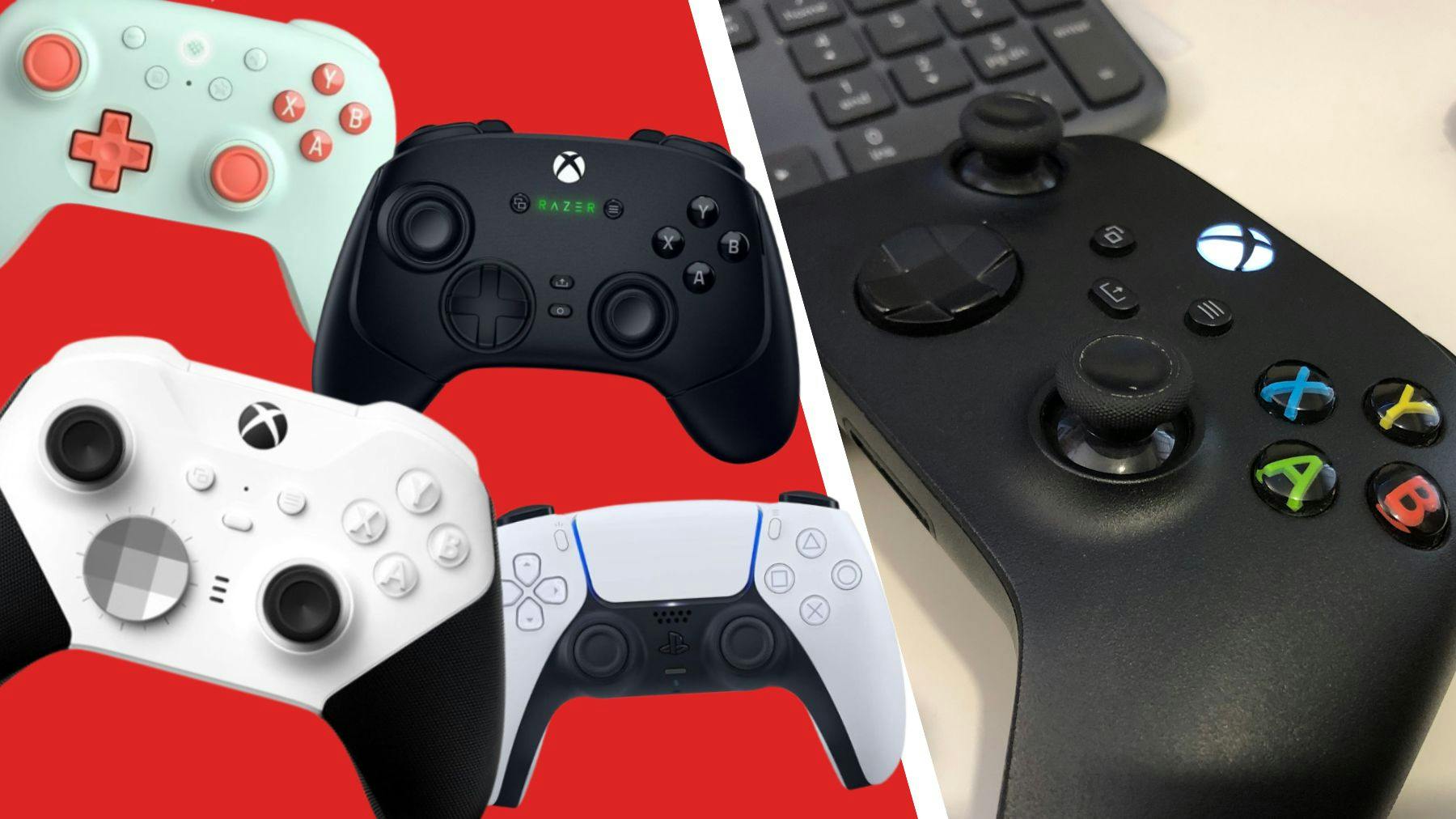

Best Controllers For PC In 2026 Recommended By Gaming Experts PC Controllers Hero 1 . 15 Best Gaming Controllers For PC In 2026 Ultimate Guide To Top Picks Top Pc Gaming Controllers Mwqqb 800x450 . 15 Best Gaming Controllers For PC In 2026 The Ultimate Guide To Top Top Pc Gaming Controllers Xpepp . Best Gaming Controllers For PC 2026 Hall Effect TMR And The Right 2688x1520 . 12 Best Gaming Controllers For PC May 2026 Reviews Featured Image 8894wu3f



15 Best Gaming Controllers For PC In 2026 Ultimate Picks For Every Top Pc Gaming Controller Picks A0ueh . The Best Controllers For PC Gaming In 2026 00 Hero Image . The Best PC Controllers In 2026 CNN Underscored Best Tested Badge 11 . Top 10 Best Gaming Controllers For PC 2026 Expert Verified Techzaru Product B0FJFM1NVY . The 5 Best Gaming Controllers For PC In 2026 Top Picks For Seamless Top Pc Gaming Controllers Py78g 800x450



Best PC Controller 2026 Gamers Unchained Best Pc Controller . Top 5 Controllers For PC Gaming 2026 Unlock Your Full Potential . Controller Pc How To Use New Xbox Series X Controllers On PC Best Pc Gaming Controllers 2024 Cnnu 1 . 15 Best Gaming Controllers For PC In 2026 Ultimate Picks For Every 41D J8aYDaL. SL500 . 15 Best Gaming Controllers For PC In 2026 Unmatched Precision And Top Pc Gaming Controllers Vjqkx

Best PC Gaming Controllers 2026 Watch Before You Regret Buying . 9 Best PC Gaming Controllers June 2026 Reviewed Models Best PC Gaming Controllers 1024x559 . Best Handheld Gaming PC In 2026 My For The Best . 7 Best PC Gaming Controllers July 2026 Reviewed Best PC Gaming Controllers 1024x559 . 10 Best PC Gaming Controllers June 2026 Hall Effect And TMR Options Best PC Gaming Controllers 1024x559



Best PC Gaming Controllers 2026 Expert Reviews Comparison Featured Image 8lgd66o4 . Recensione Steam Controller 2026 Test Prezzo E Intervista A Valve Steam Controller 2026 Recensione 1024x576 . Best Gaming PC Controller 2026 Wireless Gaming PC Guru Best Gaming Pc Controller Featured . 10 Best Gaming Controllers For PC July 2026 Expert Reviews Best Gaming Controllers For PC 768x429 . Top 7 BEST PC Gaming Controllers For 2026 Experts Tested YouTube


Best SSD For Gaming 2026 The Best Performing Drives For Your PC . Best PC Controllers For Gamers In 2026 Best Pc Controllers . From Sticks To Pads To Just Buttons These Are The Best Controllers I Best PS5 Controllers . Best Alienware Gaming PC 2026 Out Of This World Aurora Builds . The Best Controllers For PC Gaming In 2026 00 Banner Best Controllers 2026 0fbaf183 5040 4839 B20a


12 Best PC Gaming Controllers July 2026 Expert Reviews B0CY7YSW3R Customer 1 . Best PC Gaming Controllers In 2026 Ranked Gaming PC Guru Best Pc Gaming Controllers Featured . 10 Best Gaming Controllers For PC In 2026 That Gamers Swear By Deaf Vibes Top Pc Gaming Controllers Nqi8g . Best PC Controllers 2026 Best PC Controllers 1536x910 . How To Have PC Recognize PS3 Controller As A Game Controller Robots Net 14 Amazing Pc Game Controller Windows 10 For 2023 1694682535